
The Daily Storage Snapshot report provides a detailed view of all items stored in your warehouse on a selected date. You can use it to review inventory quantities, locations, volumes, weights, and pricing for any warehouse.
This guide explains how to access the report, filter data, and view item details.
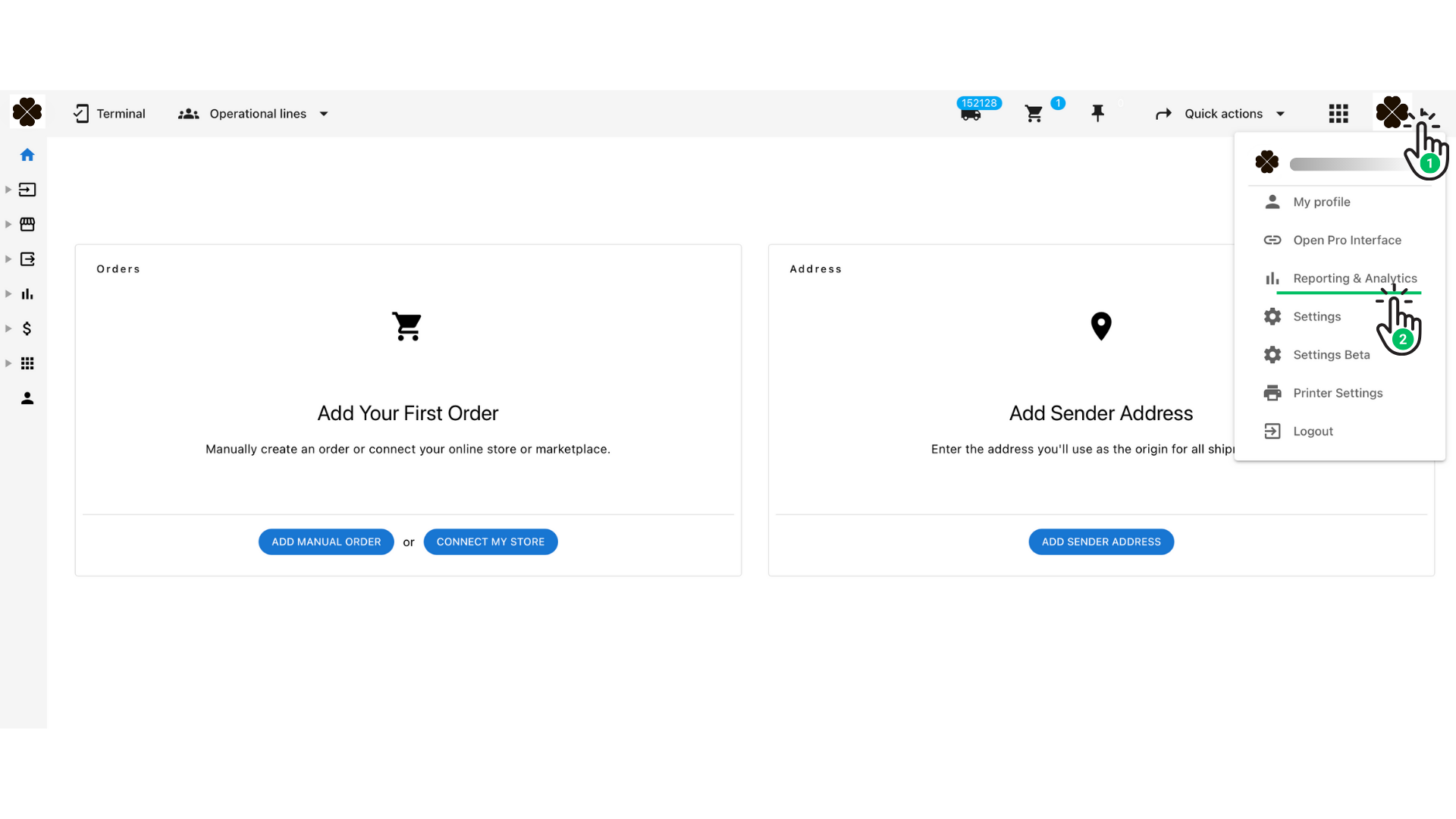
1. Opening Reporting & Analytics #
- Click your profile icon in the top-right corner of the screen.
- Select Reporting & Analytics from the dropdown menu.
2. Navigating to Daily Storage Snapshot #
- In the left sidebar, open the Daily Storage category.
- Click Daily Storage By Location (or Daily Storage Snapshot, depending on your plan).
This will open the main report screen.
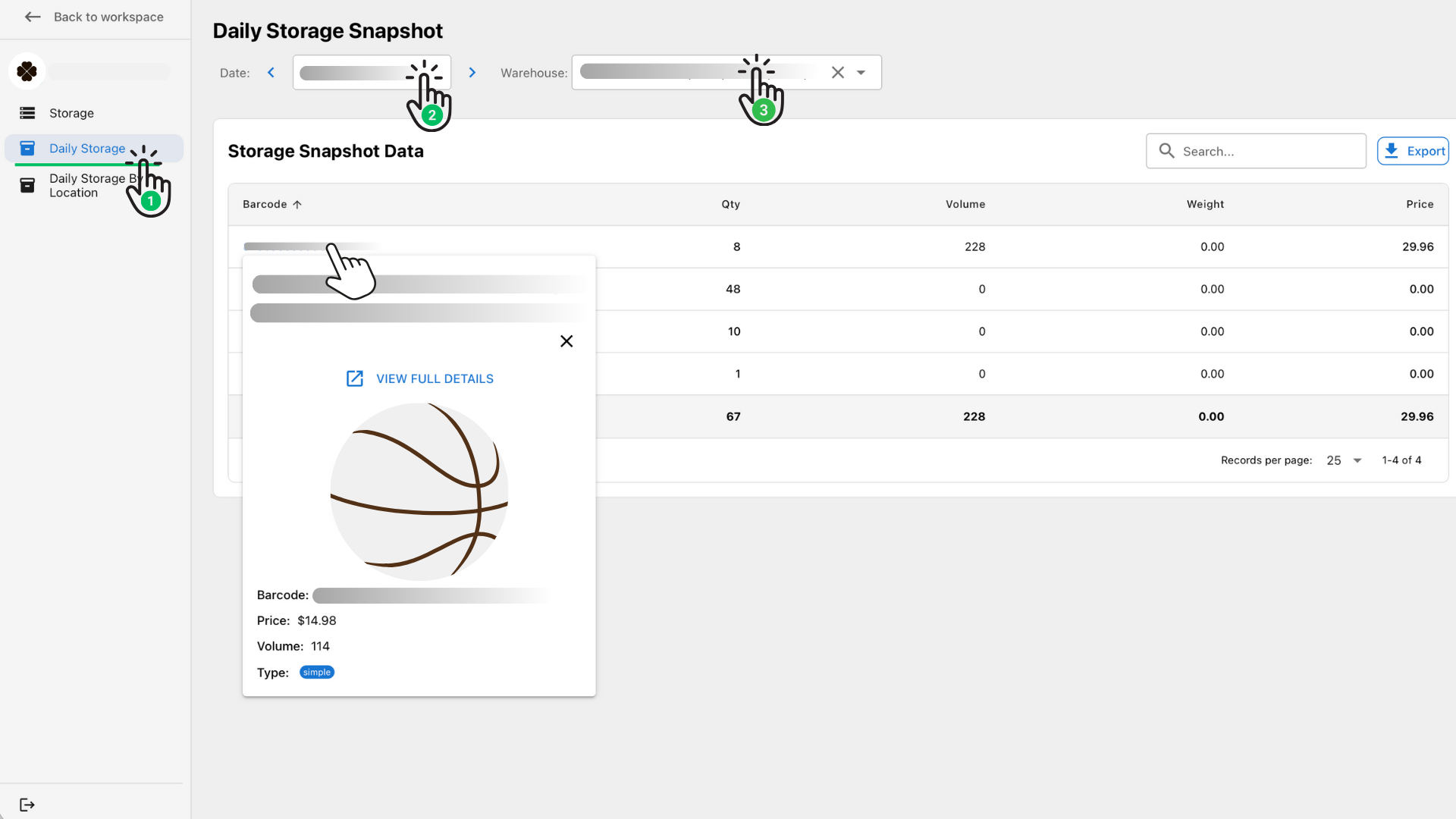
3. Selecting the Date and Warehouse #
You can filter the report using two controls at the top:
- Date Selector – Pick the date for which you want to review storage data.
- Warehouse Selector – Choose the warehouse you want to analyze.
The table will automatically update when filters are changed.
4. Understanding the Storage Snapshot Table #
The table displays:
- Place – The exact storage location or bin.
- Type – Location type (e.g., static, simple, dynamic).
- Barcode – Item barcode.
- Shop – Client/shop ID.
- Qty – Quantity stored.
- Volume – Total volume occupied.
- Weight – Total weight.
- Price – Calculated storage value (if enabled).
Totals are displayed at the bottom of the report.
You may also use the Search bar to filter by barcode, place, or shop.
5. Item Preview (On Hover) #
When you hover over a row in the table, a preview popup appears showing the following details:
- Large product image
- Barcode
- Price
- Volume
- Location type
- Quick link: View Full Details (opens the item page)
This allows you to quickly inspect stored items without leaving the report.
6. Exporting the Report #
Click the Export button in the top-right corner to download the data in CSV format.
Exports include all applied filters (date, warehouse).


