
With Octava, you can generate up to 250 shipping labels with packing slips in a single merged PDF — ready for printing or downloading in seconds. This is ideal for batch fulfillment, prep-center workflows, or processing high-volume shipment queues.
This guide explains how to generate the file, adjust options, and download your final PDF.
What You Can Do #
✔ Generate shipping labels + packing slips together
✔ Combine everything into one PDF file
✔ Process up to 250 shipments at once
✔ Choose packing slip format: 10×15 cm or A4
✔ Automatically switch to async mode for large batches
✔ Download the file instantly once ready
How to Generate Labels & Packing Slips in Bulk #
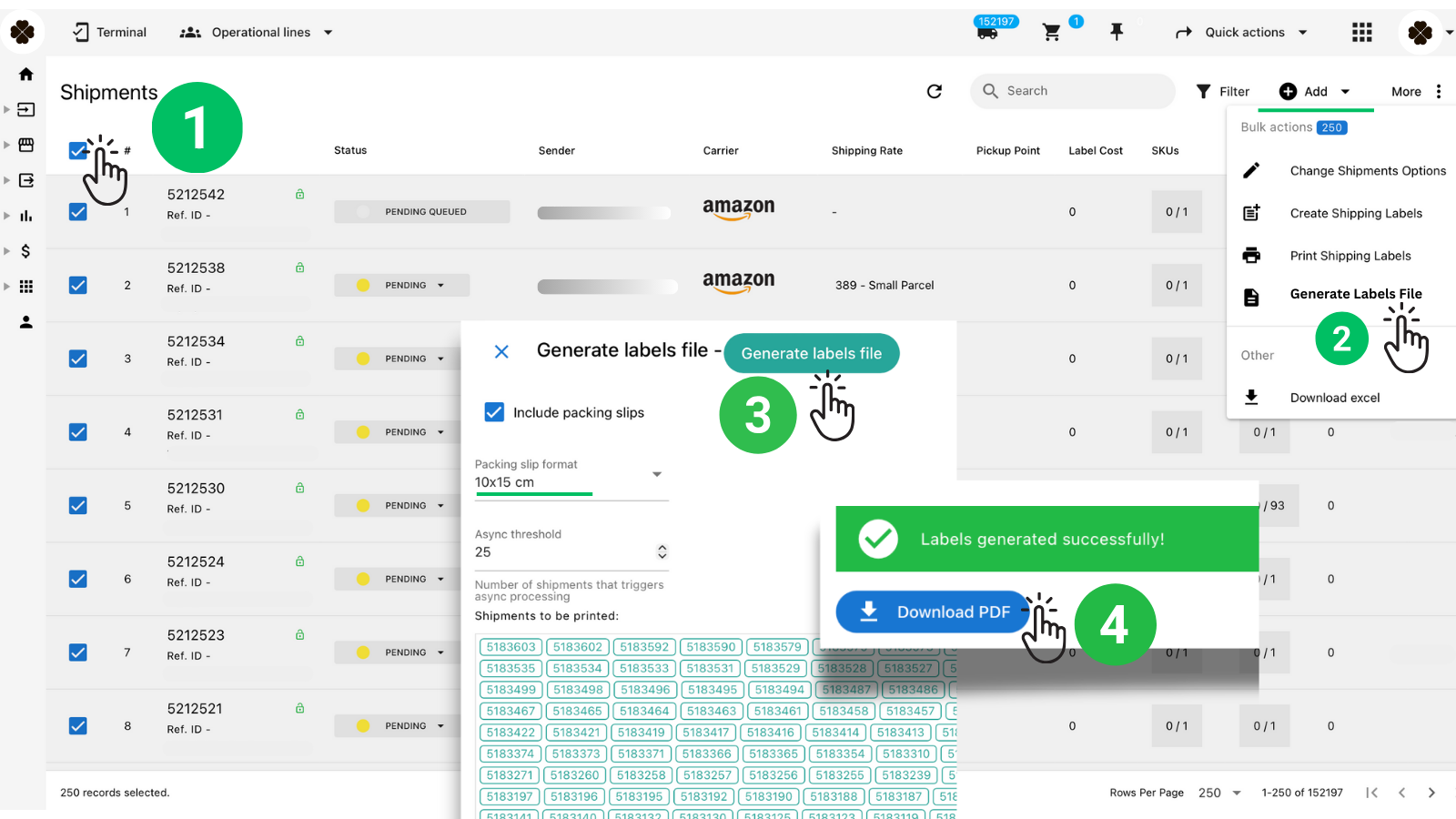
Follow these steps based on the screenshot above:
Step 1 – Select the Shipments #
Go to Shipments and select up to 250 rows using the checkbox.
You can filter and bulk-select all visible shipments if needed.
Step 2 – Open Bulk Actions → Generate Labels File #
Click Bulk actions → Generate Labels File.
This opens the popup window with generation options.
Step 3 – Configure Your Options #
In the popup:
Include Packing Slips #
Enable the toggle Include packing slips if you want packing slips automatically merged with labels.
Packing Slip Format #
Choose one:
- 10×15 cm (default)
- A4
Async Threshold #
Set the number of shipments after which the file will be created asynchronously.
Default: 25.
- Up to threshold → generated instantly (sync)
- Above threshold → background processing (async)
You will also see a preview list of shipment IDs that will be processed.
Step 4 – Generate & Download #
Click Generate labels file.
If synchronous: #
- File generates instantly
- A success message appears
- Click Download PDF
If asynchronous: #
- Import is created in the background
- A real-time status notification displays
- Once ready, click Download PDF from the notification
Final Output #
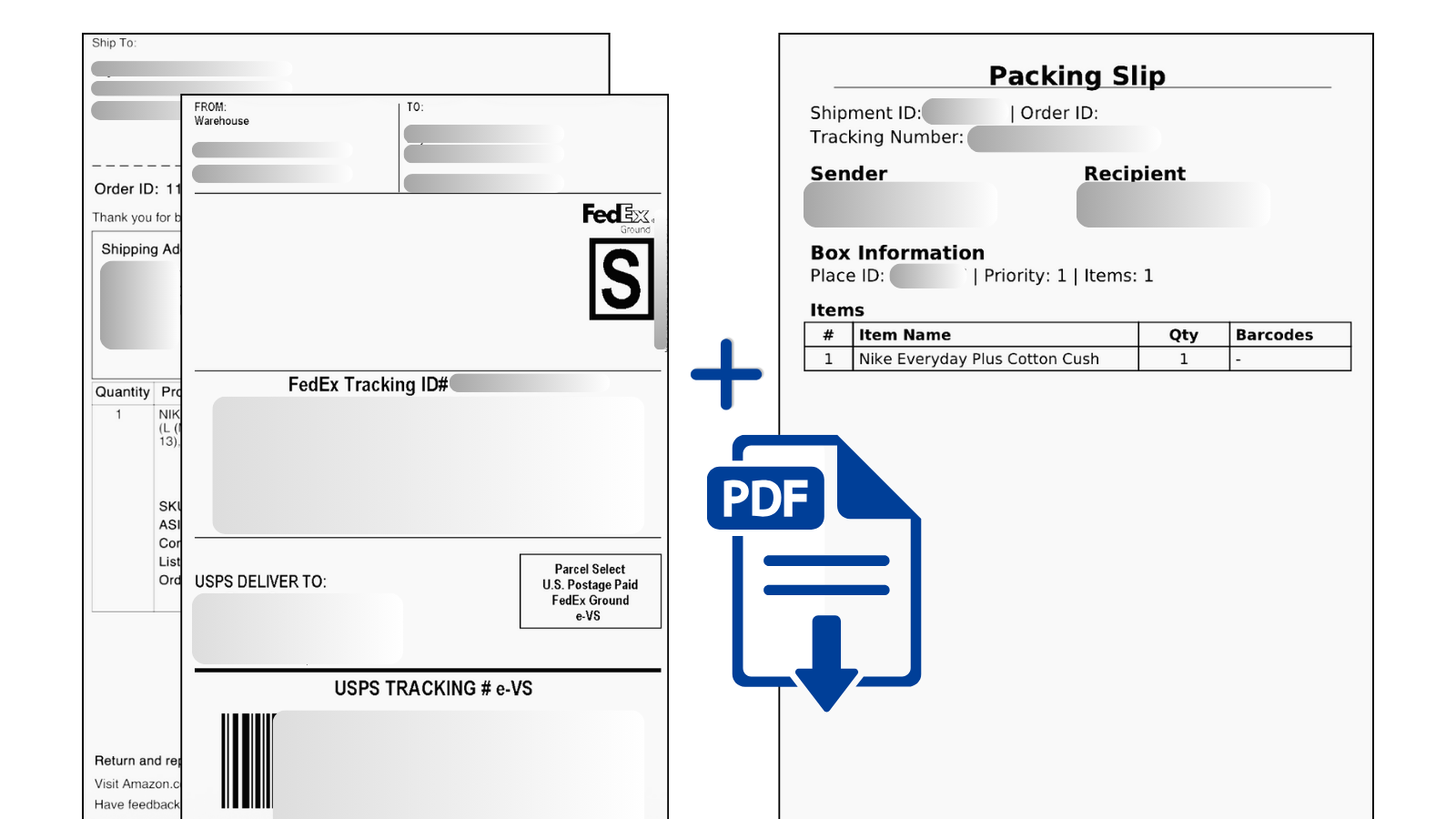
Your final PDF will contain:
1. Shipping Labels #
- Carrier-approved labels (Amazon Buy Shipping, USPS, UPS, FedEx, DPD, etc.)
2. Packing Slips #
- Shipment ID
- Order ID
- Sender & Recipient (recipient name only – GDPR compliant)
- Place/Box information
- Item list with quantities and barcodes
Each place/box receives its own packing slip.
Everything is merged into one printable PDF for your thermal or A4 printer.
Best Practices #
- Use 10×15 cm when printing thermal shipping labels.
- Use A4 when you need larger packing slip layouts.
- Keep async threshold at 25 unless you process smaller batches.
- If your printer supports PDFs directly — just load the file and print all at once.


