Table of Contents
This guide explains how to adjust carrier rates for selected orders and generate shipping labels in bulk inside Octava WMS. Use this workflow when you need to update shipping prices or recalculate fulfillment costs before generating labels for multiple shipments.
1. Select Orders for Bulk Processing #
- Navigate to Shipments in the WMS.
- Use filters to narrow down the selection if necessary.
2. Change the Carrier Rate (Optional Step) #
You can adjust the carrier rate before generating labels.
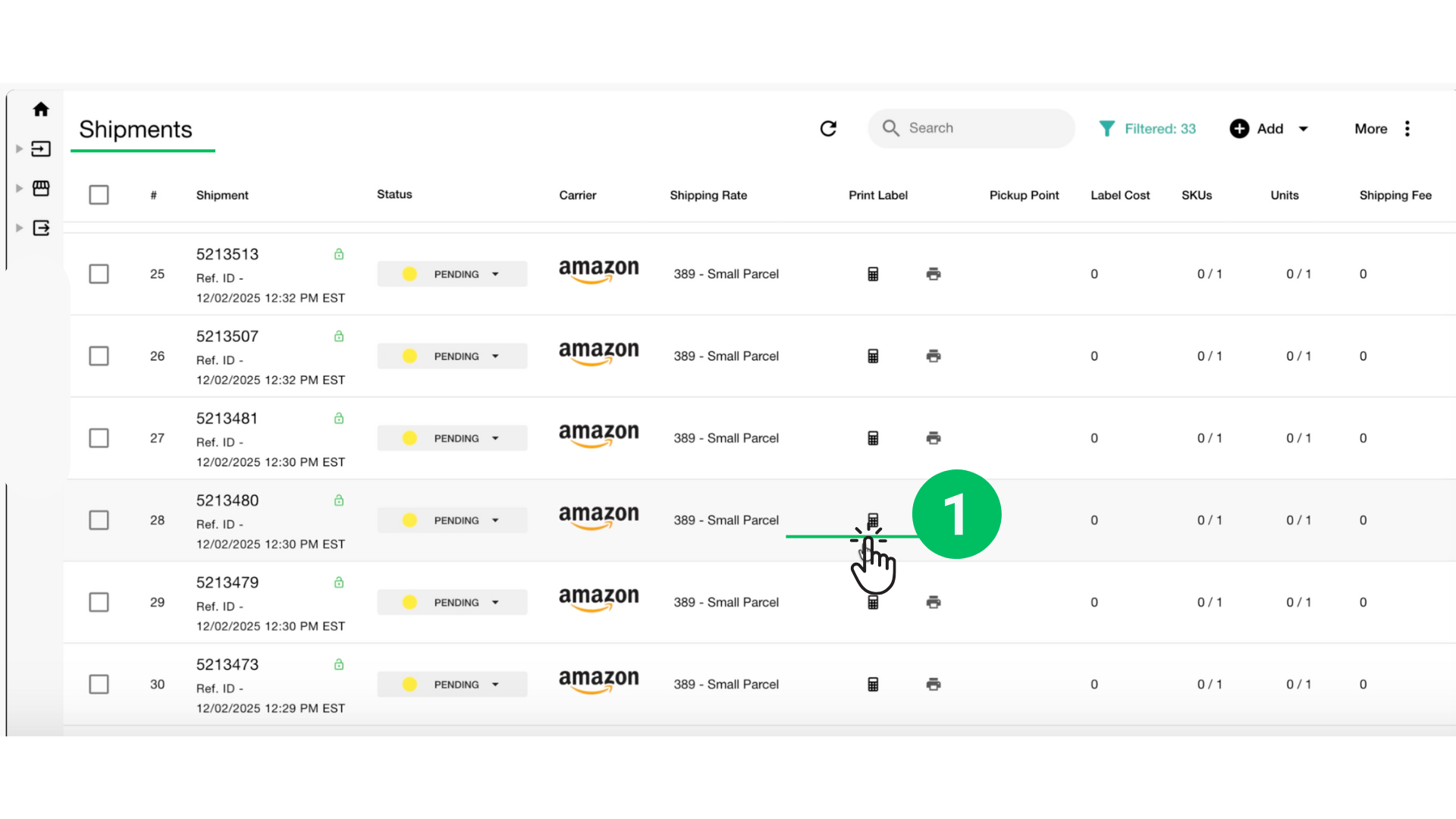
In the Shipments section, locate the shipment row and click the Carrier Rate icon/button.
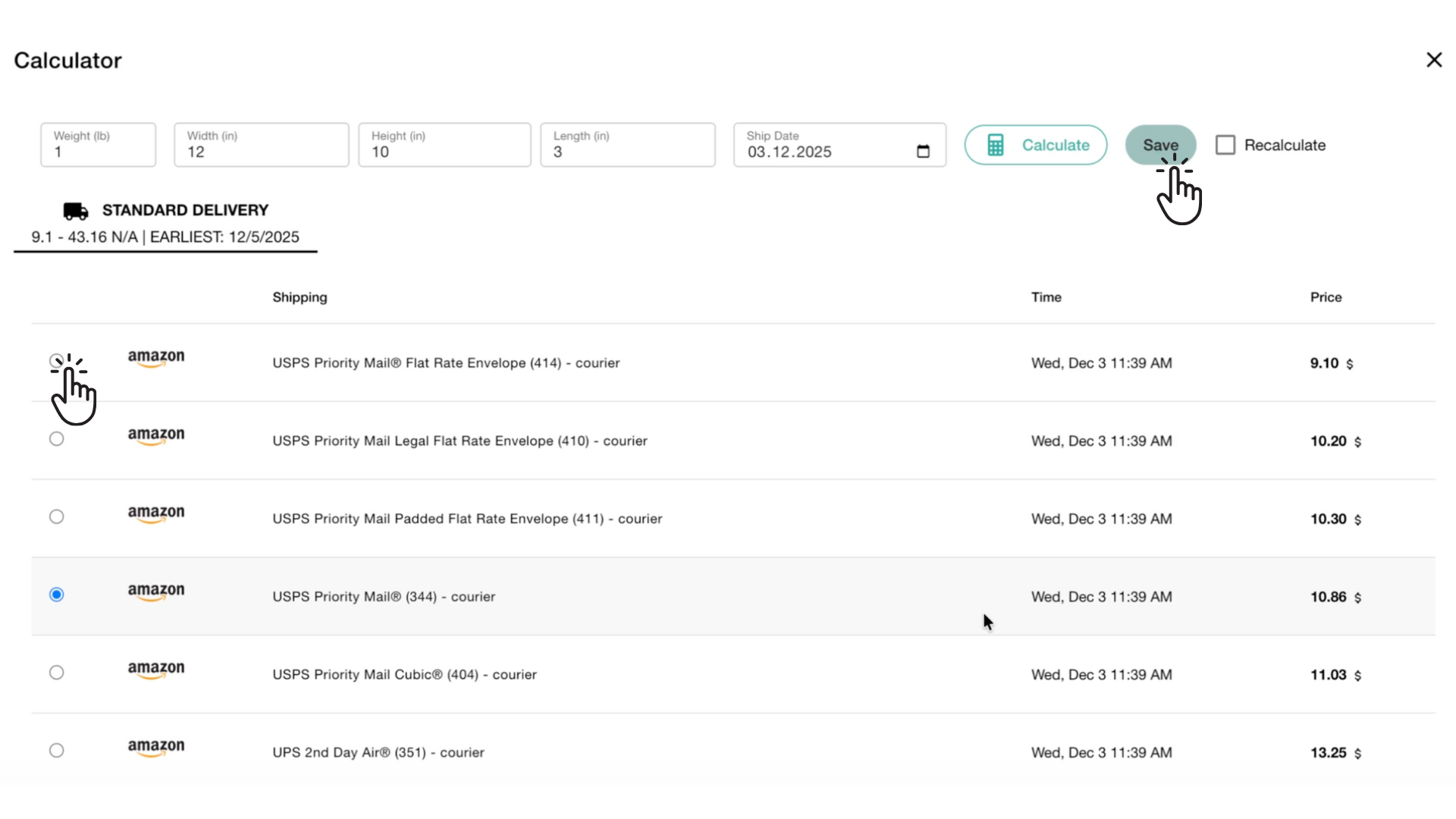
- A dialog will open displaying all available carrier service options and prices for that shipment.
- Review the list, choose the rate you want to apply, and click Save to update the shipment.
3. Generate Shipping Labels in Bulk #
1. Select shipments and start label generation
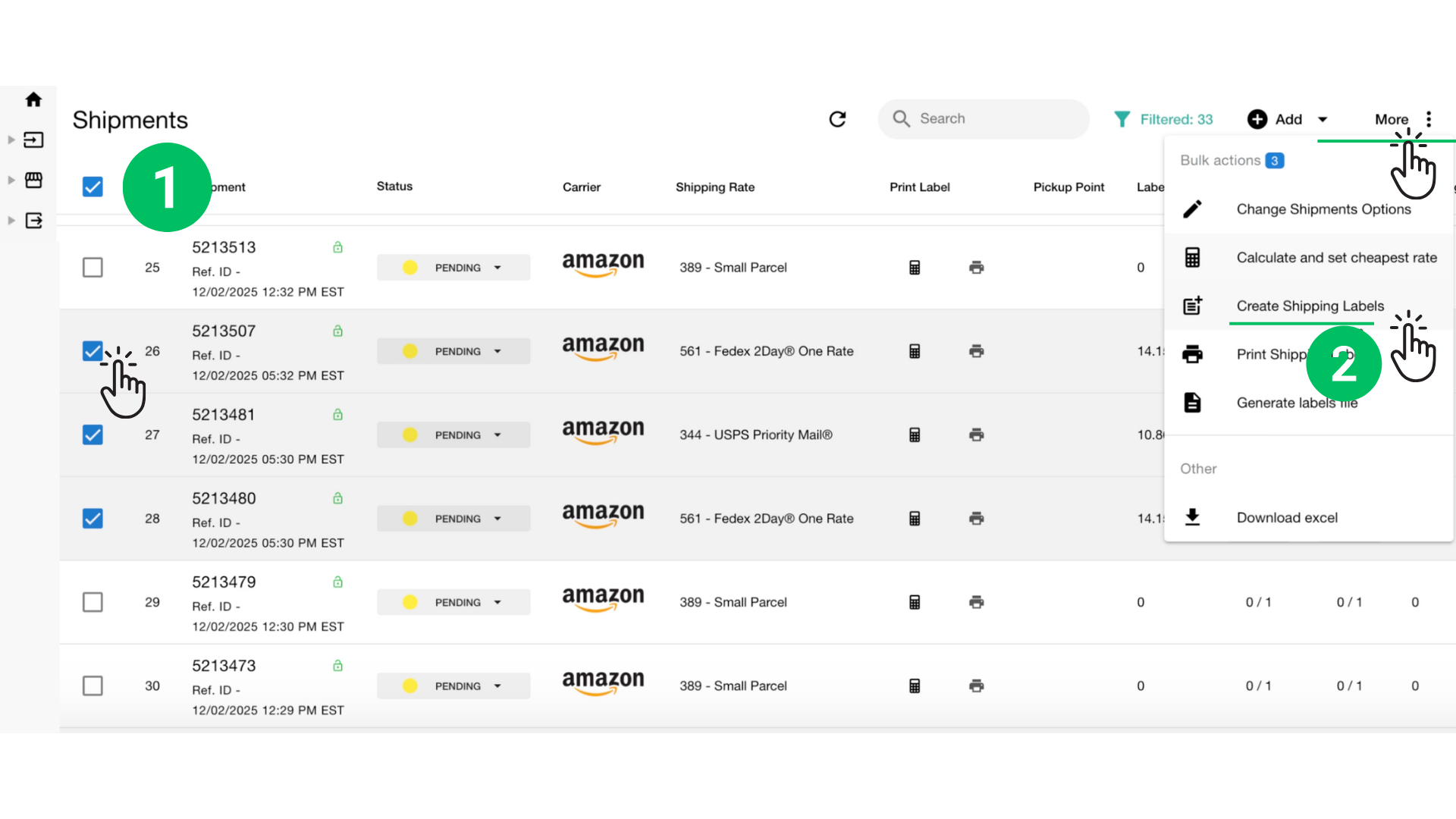
- Select the shipments you want to process.
- Open the More menu and choose Create Shipping Labels.
- Click Create Labels in Bulk.
- Close the dialog when all labels are created.
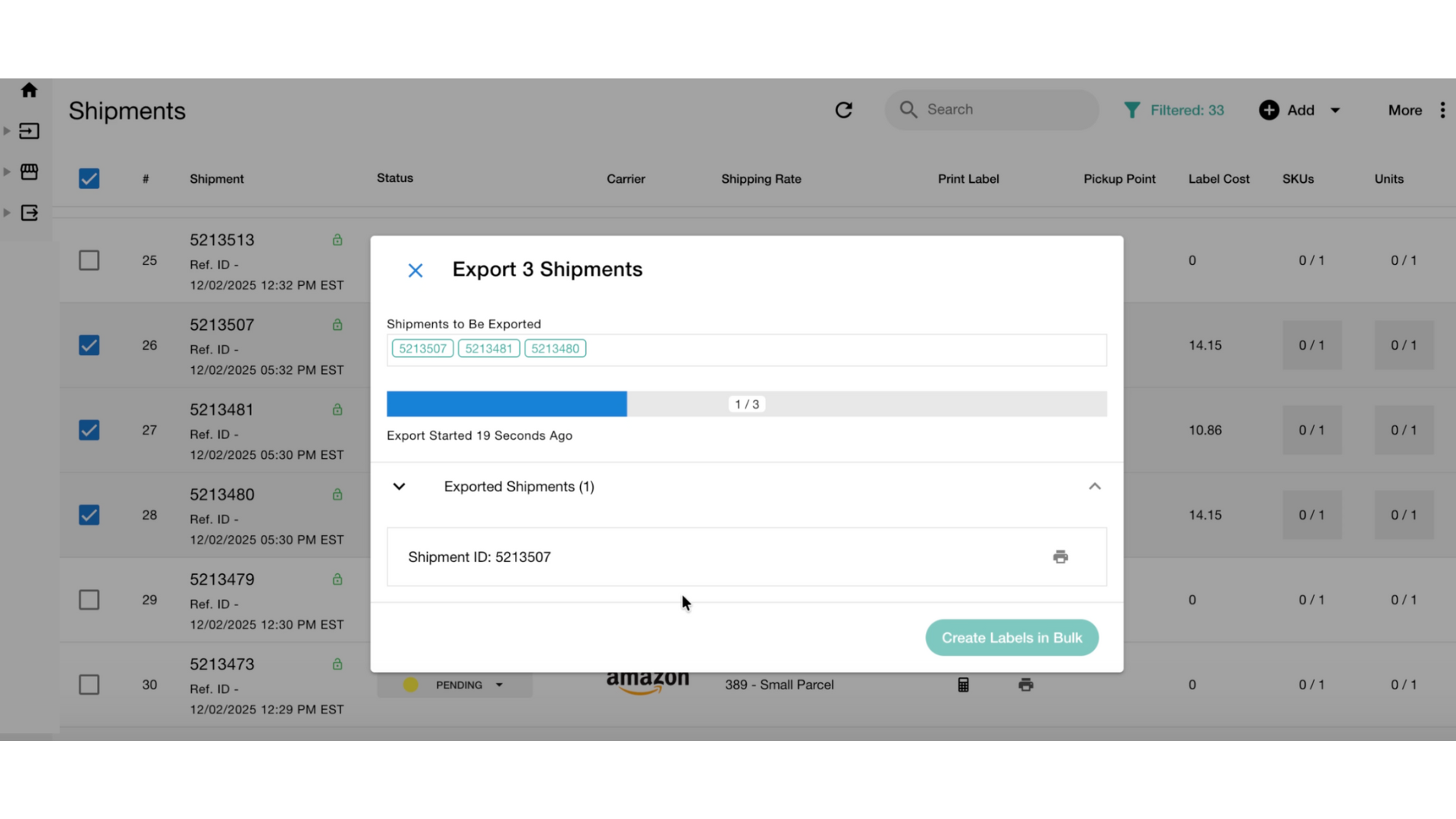
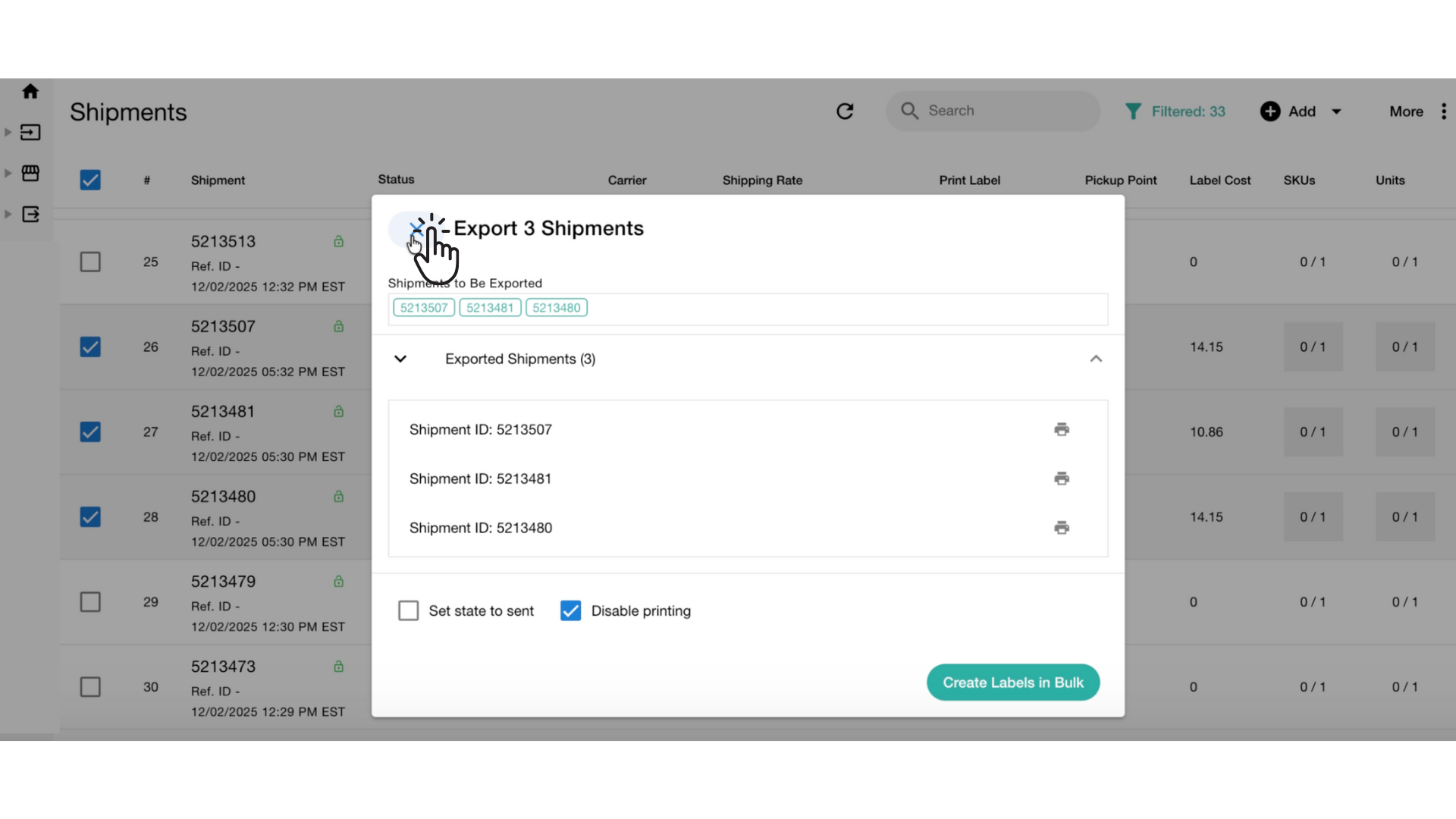
If you don’t need to print labels immediately, you can disable the automatic printing option.
Label generation happens quickly, but it still requires time to receive responses from external carrier services.
The system will automatically perform all required steps #
- Validate all shipment and order data
- Send requests to the carrier’s API
- Generate shipping labels for every shipment in the batch
- Retrieve tracking numbers and carrier service details
4. When label generation is complete #
- Tracking numbers are automatically assigned to each order.
- Shipment statuses update (for processing status) to reflect that labels were successfully created.
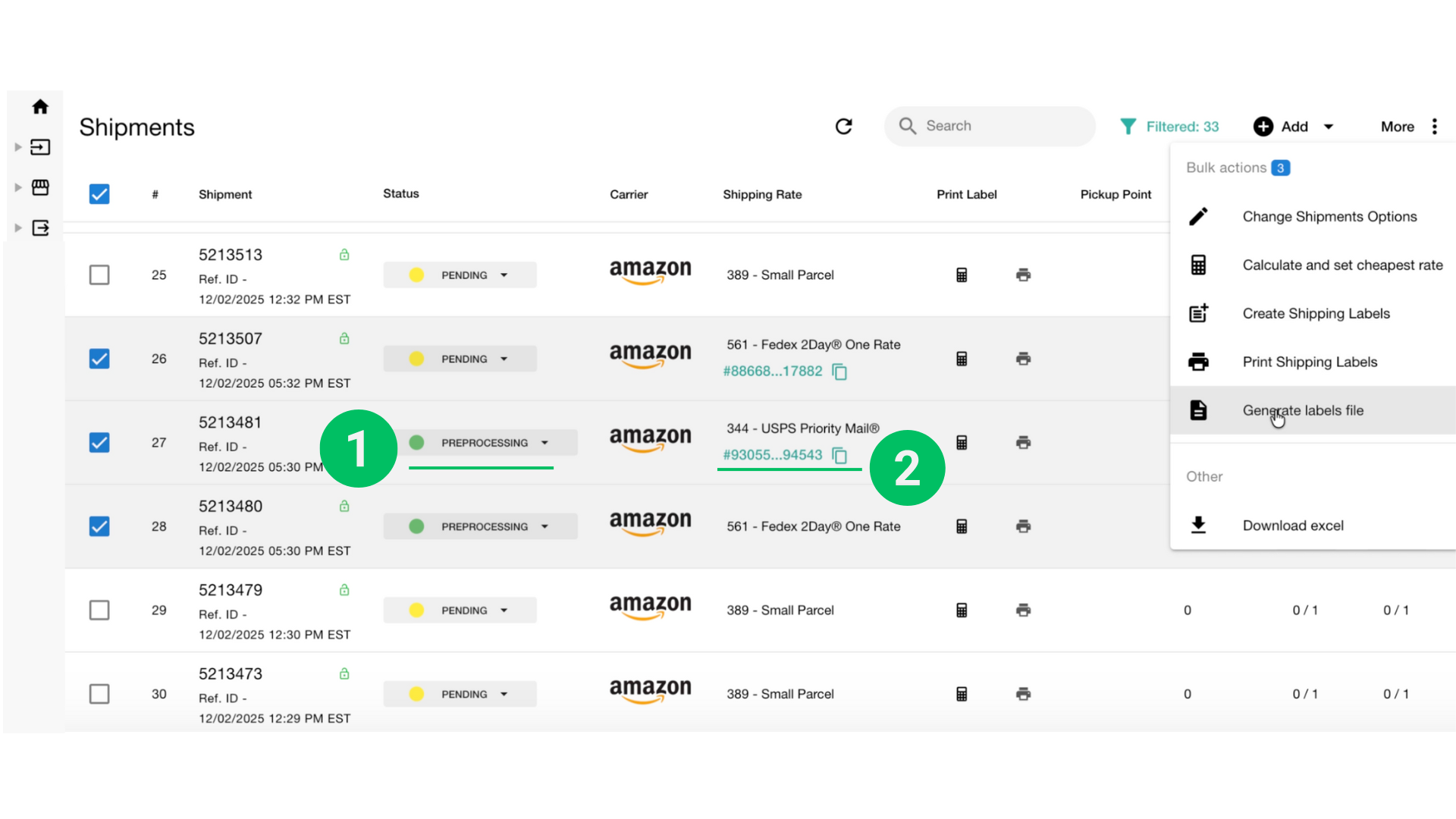
- Labels become available for preview, print, download or create a PDF with packing slips (optional).