Use this when you want to receive inventory from shelves/bins and place it into stock.
How to Add Inventory by Scanning Products Into a Purchase Order (PO)
Use this when you want to receive inventory from shelves/bins and place it into stock.
Step 1 — Create a New Purchase Order #
1. Go to Inbound → Purchase Orders.
2. Click Create PO → Products.

Step 2 — Add Products to the PO by Scanning #
1. Click Add Product From Catalog.
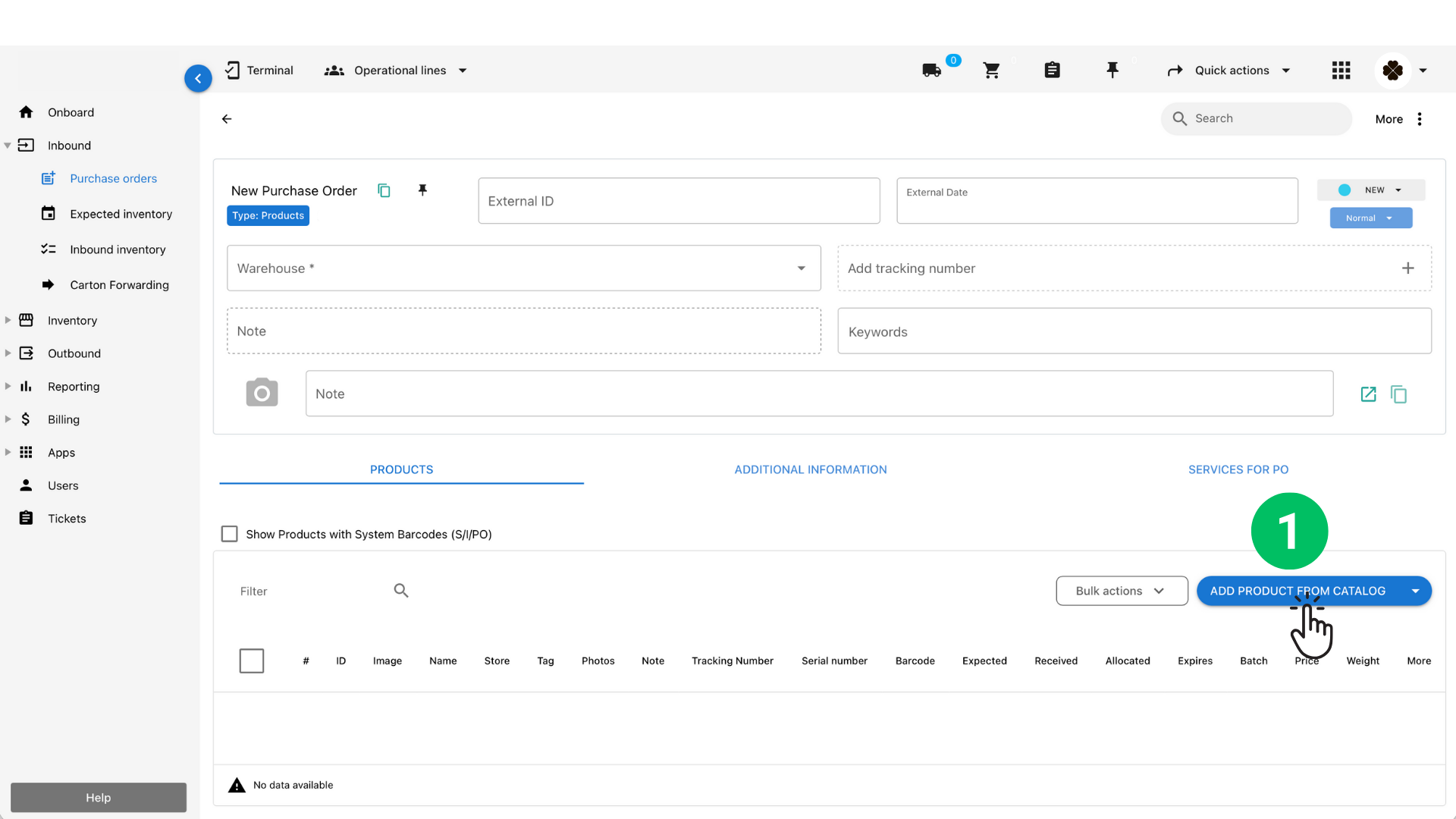
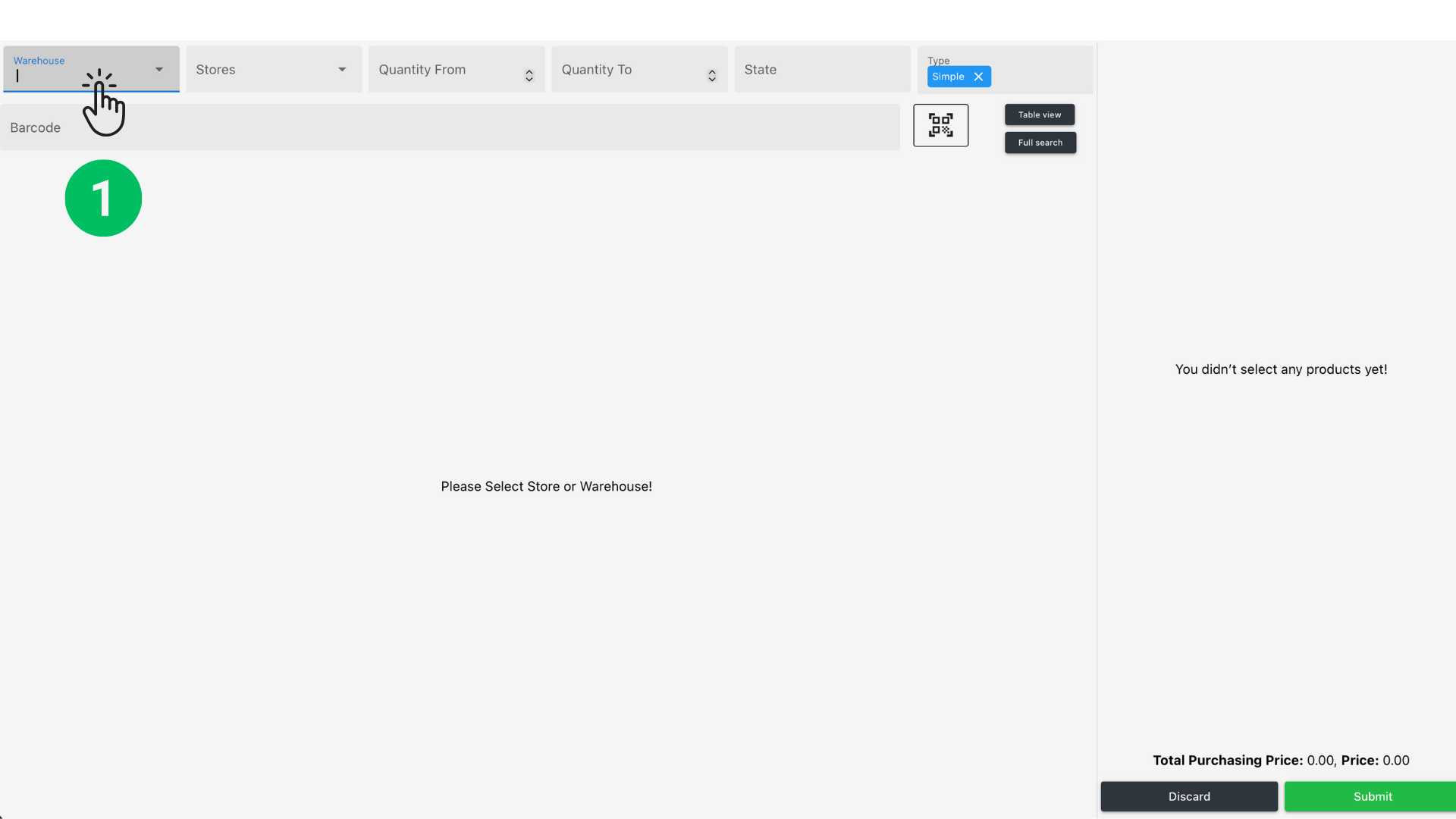
1. Select your Warehouse and Store (if needed).
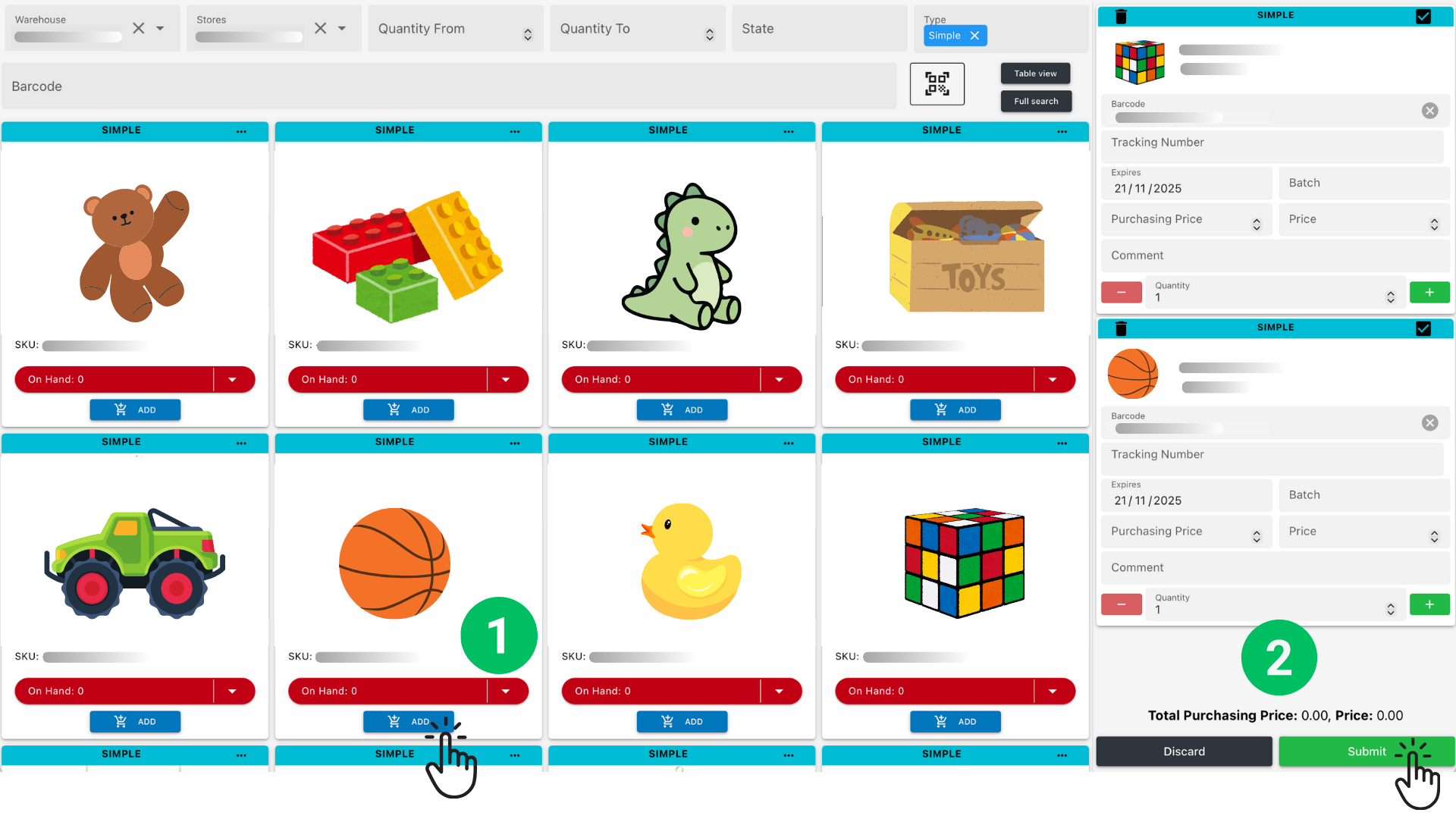
1. Start scanning items using your barcode scanner.
• Every scan adds the product to the PO.
• You can also manually press ADD on the card.
Adjust quantities if needed.
2. Click Submit to add all scanned items into the PO.
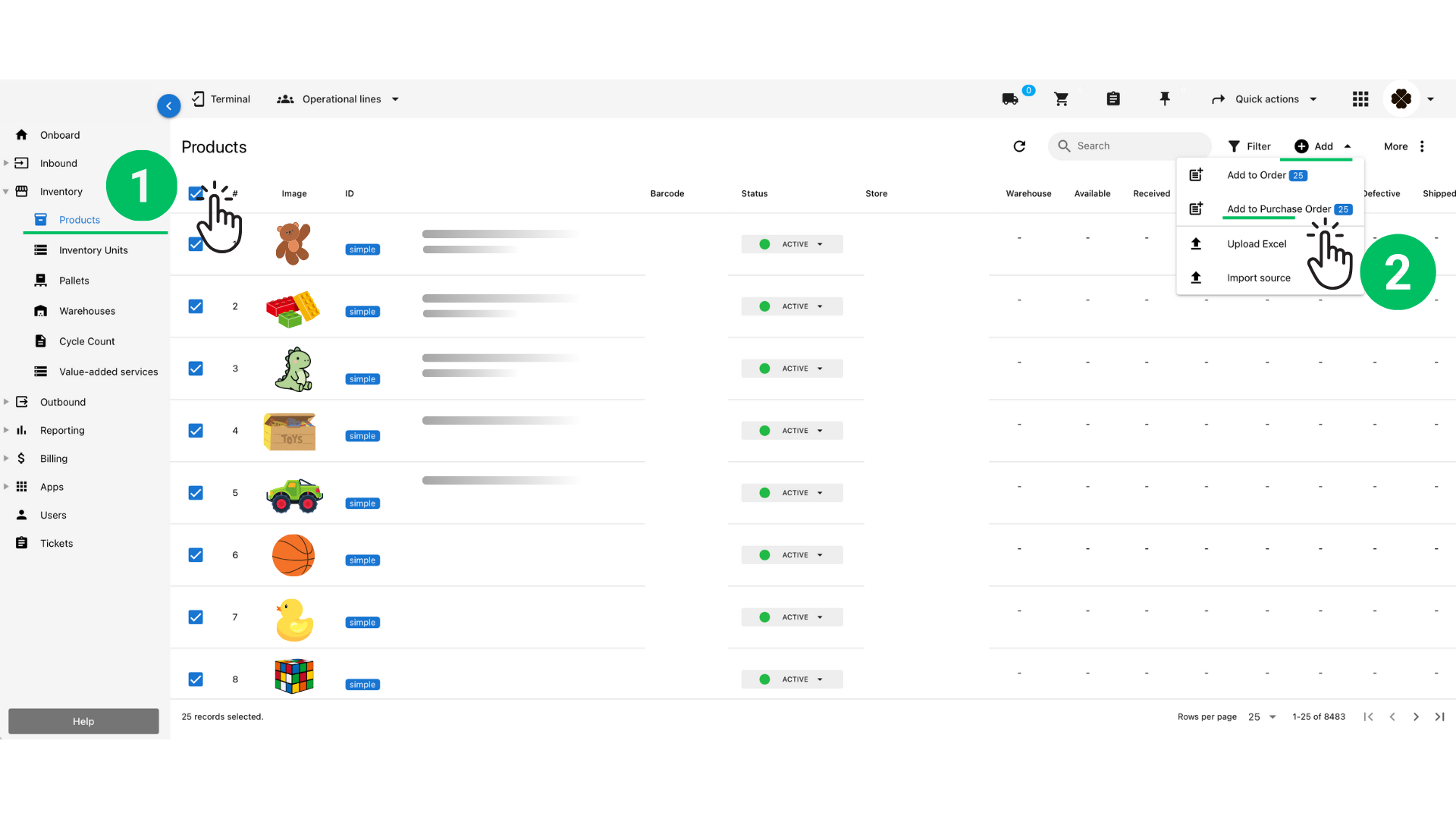
Another way to add products to a Purchase Order is by selecting them directly from the Products list.
How it works
- Go to ProductsNavigate to Inventory → Products.
- Select multiple productsUse the checkboxes on the left to select one or many products you want to include in the Purchase Order.
- Click “Add” → “Add to Purchase Order”In the top-right corner, open the Add dropdown and choose Add to Purchase Order.This option shows the number of products you selected.
- Octava will create a new Purchase OrderA new PO opens automatically with all selected products added inside it. You can now set quantities, add batch/expiry info, and continue with receiving and allocating.
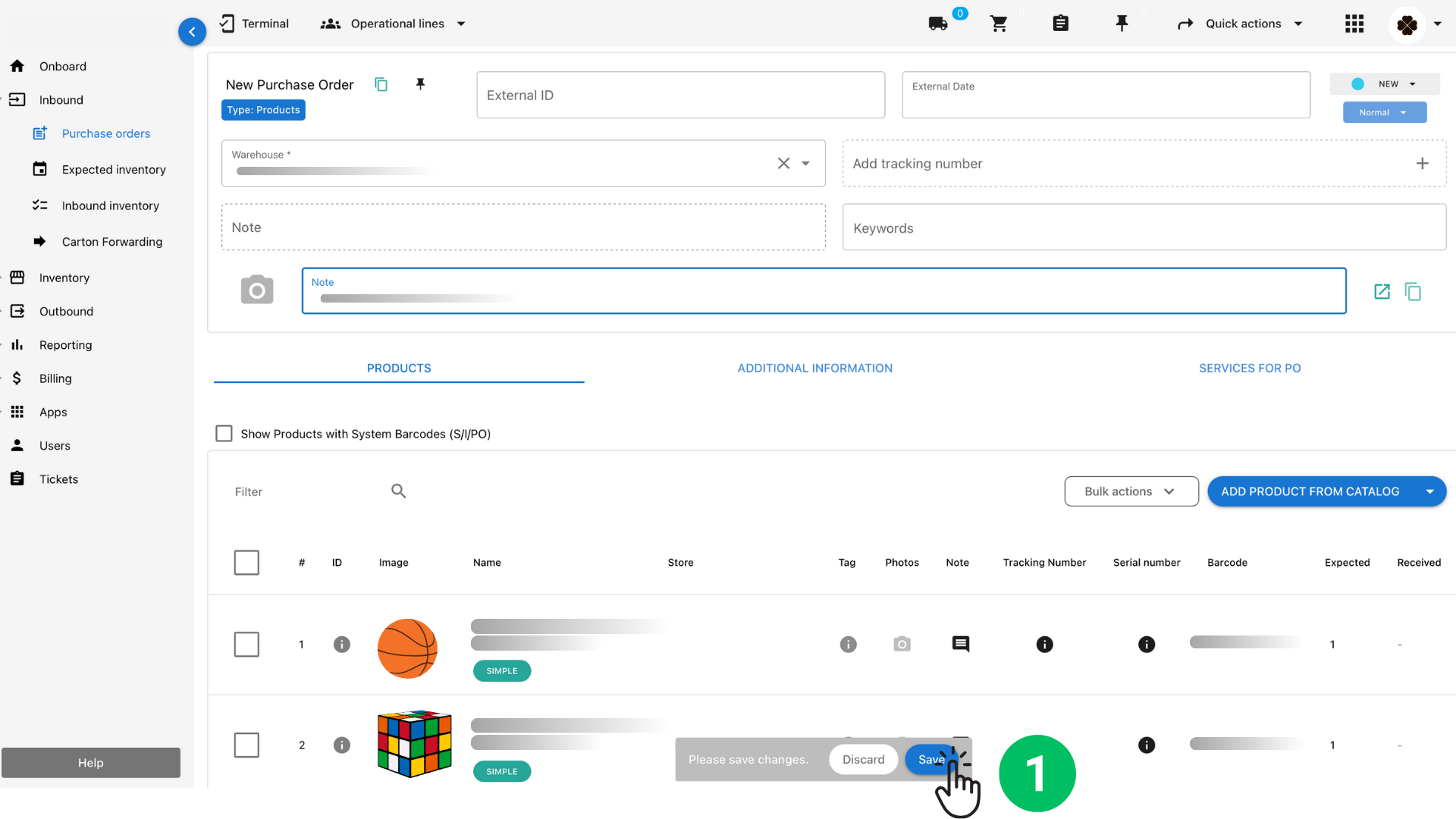
Step 3 — Save the PO #
1. Add a note if needed. Press Save.
Step 4 — Confirm Received Quantity #
After the PO is saved:
1. Go to More → Confirm All Inventory.
2. Octava will set the Received quantity based on what you scanned. You can monitor the progress in the PO table.
Received – units confirmed as received for this PO.

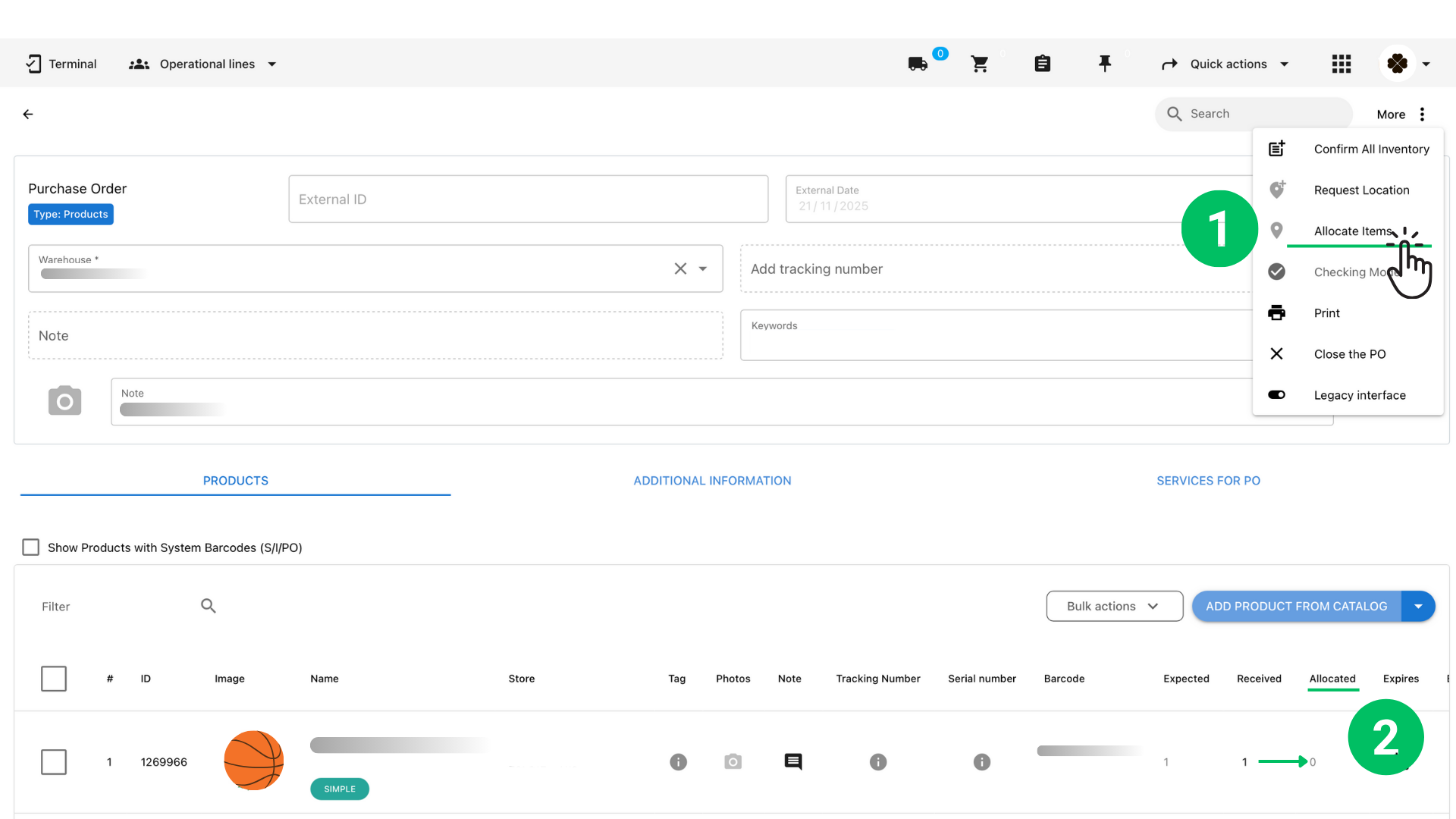
Step 5 — Allocate Items to Shelf/Bin Locations #
1. Go to More → Allocate Items.
2. You can monitor the progress in the PO table. Allocated – units assigned to specific bin locations.
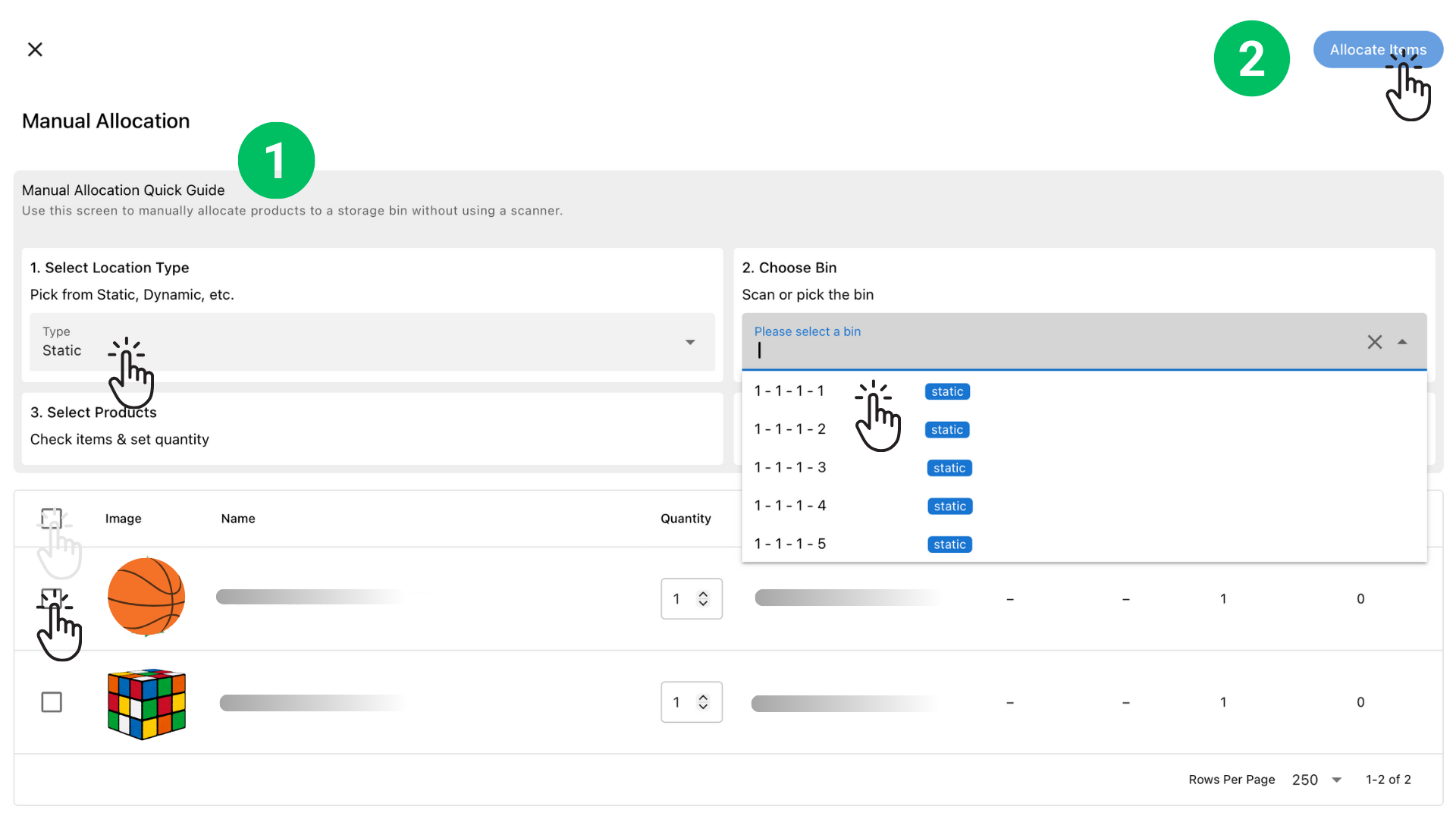
Follow the steps of manual allocation.
Option: You can select a new bin for each product with a specific unit quantity if needed.
Example:
• Scan Shelf A1 → select items stored on A1
• Scan Shelf B4 → select items stored on B4
• And so on.
Step 6 — Close the PO (Optional)
If everything is correct or done:
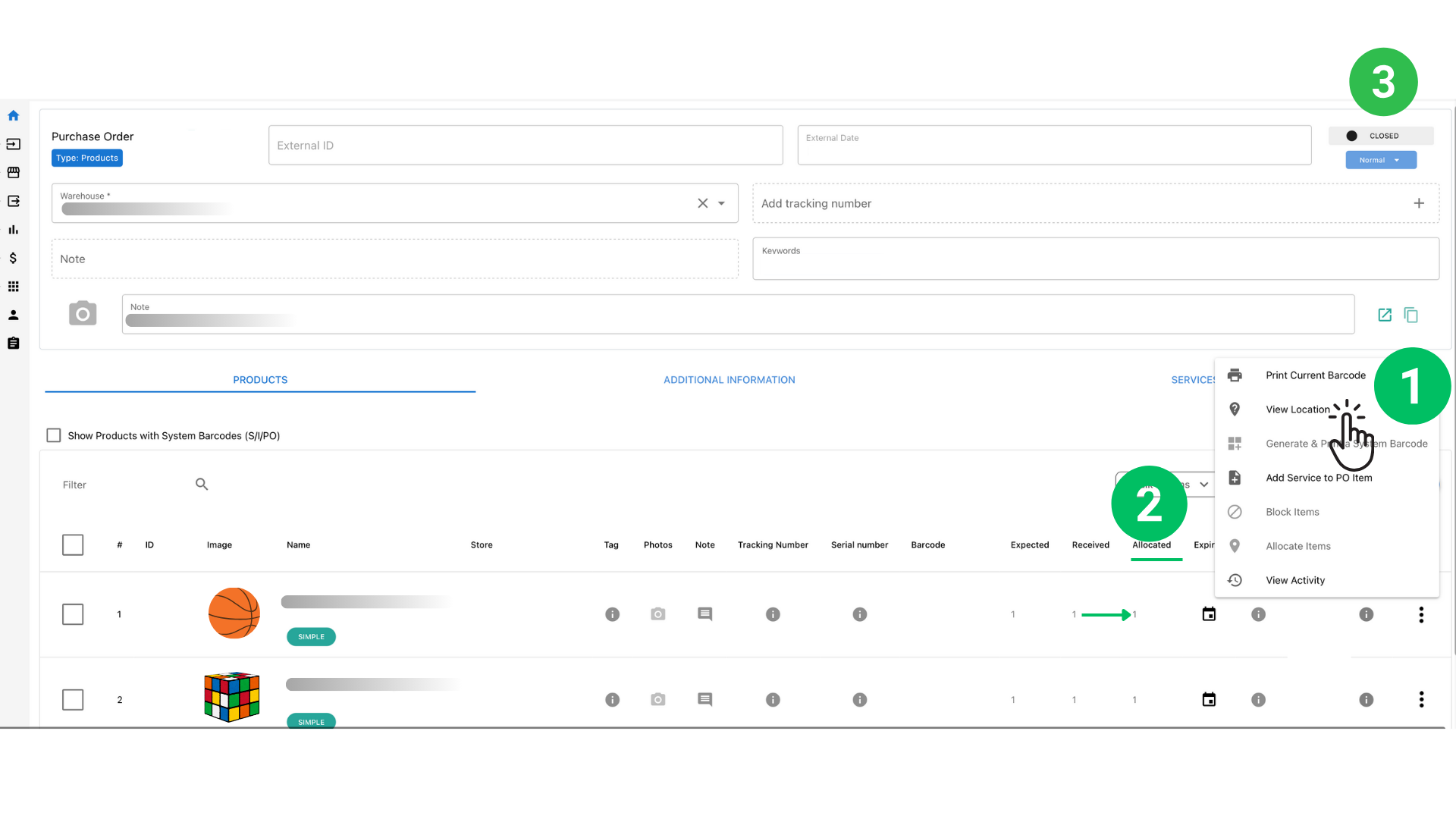
1. You can check the product’s location by clicking More on the product line in the table, then selecting View location.
2.You can monitor the progress in the PO table. The PO has three main steps:
- Expected – units added to the PO.
- Received – units confirmed as received for this PO.
- Allocated – units assigned to specific bin locations.
3. If all products from the PO are allocated, the PO will automatically move to Closed status.