
The Octava Terminal allows warehouse staff to quickly receive products directly at the shelf or upon arrival by creating a new Purchase Order (PO) and scanning product barcodes. This workflow is perfect for fast inbound receiving, restocking, and bin-by-bin scanning.
Summary of the Terminal Receiving Workflow #
1. Terminal → Receiving → Manual #
2. Actions → Create PO
3. Fill PO details → Save
4. Scan product barcodes
5. Save quantities
Inventory confirmation of the PO is also available through the Terminal or the Desktop interface.
Next action:
Terminal → Receiving → Manual -> Enter the P/O * Number #
1. Select PO for product allocation.
2. Scan a bin locations – Scan product barcode.
3. PO closes automatically after full allocation.
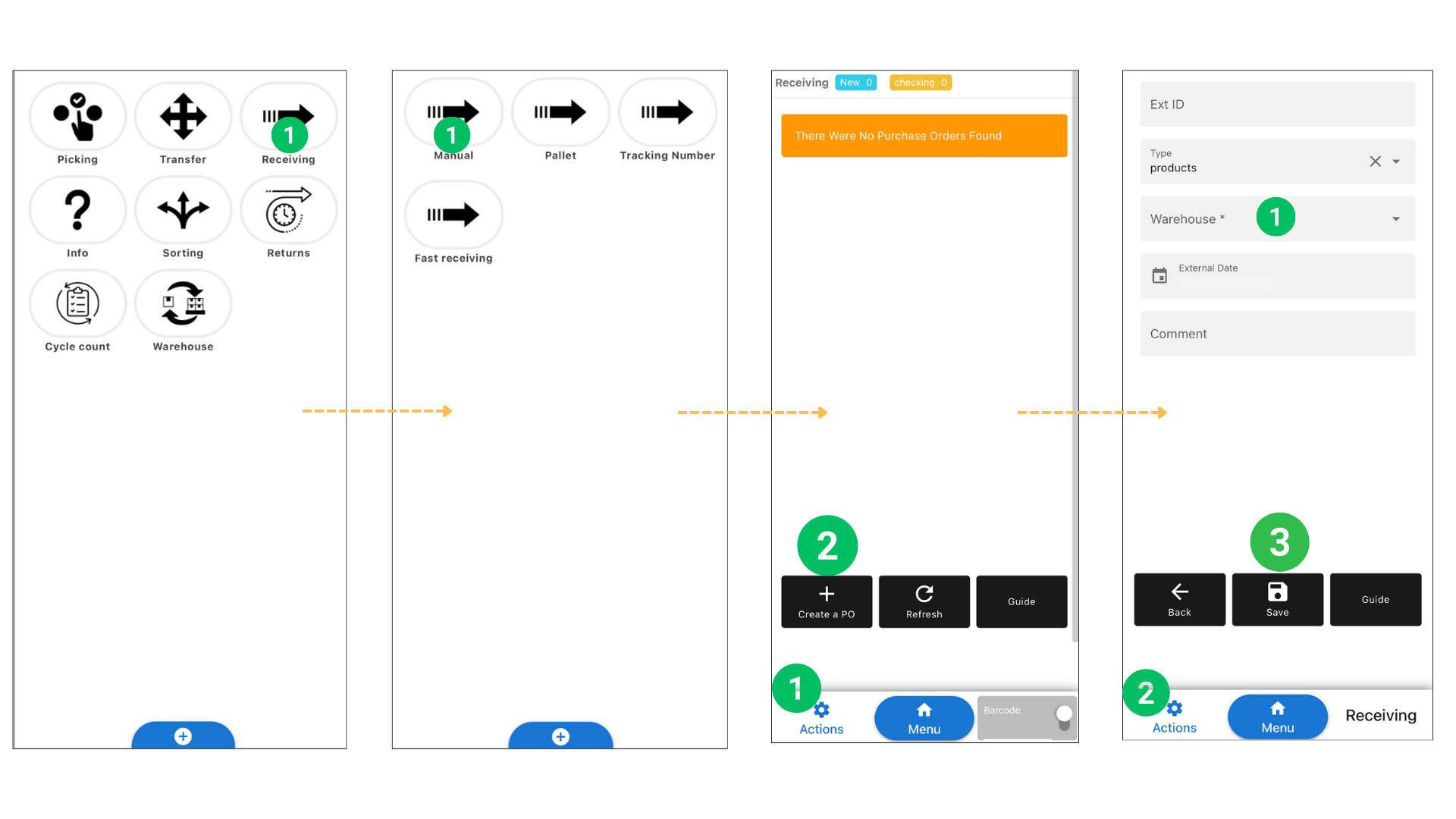
1. Open the Terminal and Navigate to Receiving #
1. On the Terminal home screen, tap Receiving.
2. Choose the receiving method: Manual — Standard receiving with item-by-item scanning.
2. Create a New Purchase Order (PO) #
1. At the bottom menu, tap Menu.
2. Tap Actions → Create a PO.
3. Fill in the PO details:
• Type: Products
• Warehouse: Select where you will store the received items
• External ID (optional): Reference to supplier or shipment
• Note/Comment (optional)
4. Tap Actions → Save to create the empty PO.
This creates a new PO that will hold all scanned products for this receiving session.
3. Begin Scanning Products Into the PO #
Once the PO is created:
1. Navigate back to the receiving screen.
2. The newly created PO will now appear in the list.
3. Tap the PO to open it.
4. Start scanning product barcodes:
• Each scan automatically adds the product to the PO.
• Quantity increases with every scan.
• You can also enter quantity manually if needed.
This allows you to receive inventory directly at the shelf without needing a desktop interface.
4. Confirm the Received Quantities #
Once scanning is complete:
1. Open the PO in the Terminal.
2. Review product quantities.
3. Tap Actions -> Confirm to confirm the received amounts.
At this point, the items are marked as Received but not yet assigned to a physical location (bin).
5. Allocate Quantities to Bin Locations #
After confirming quantities:
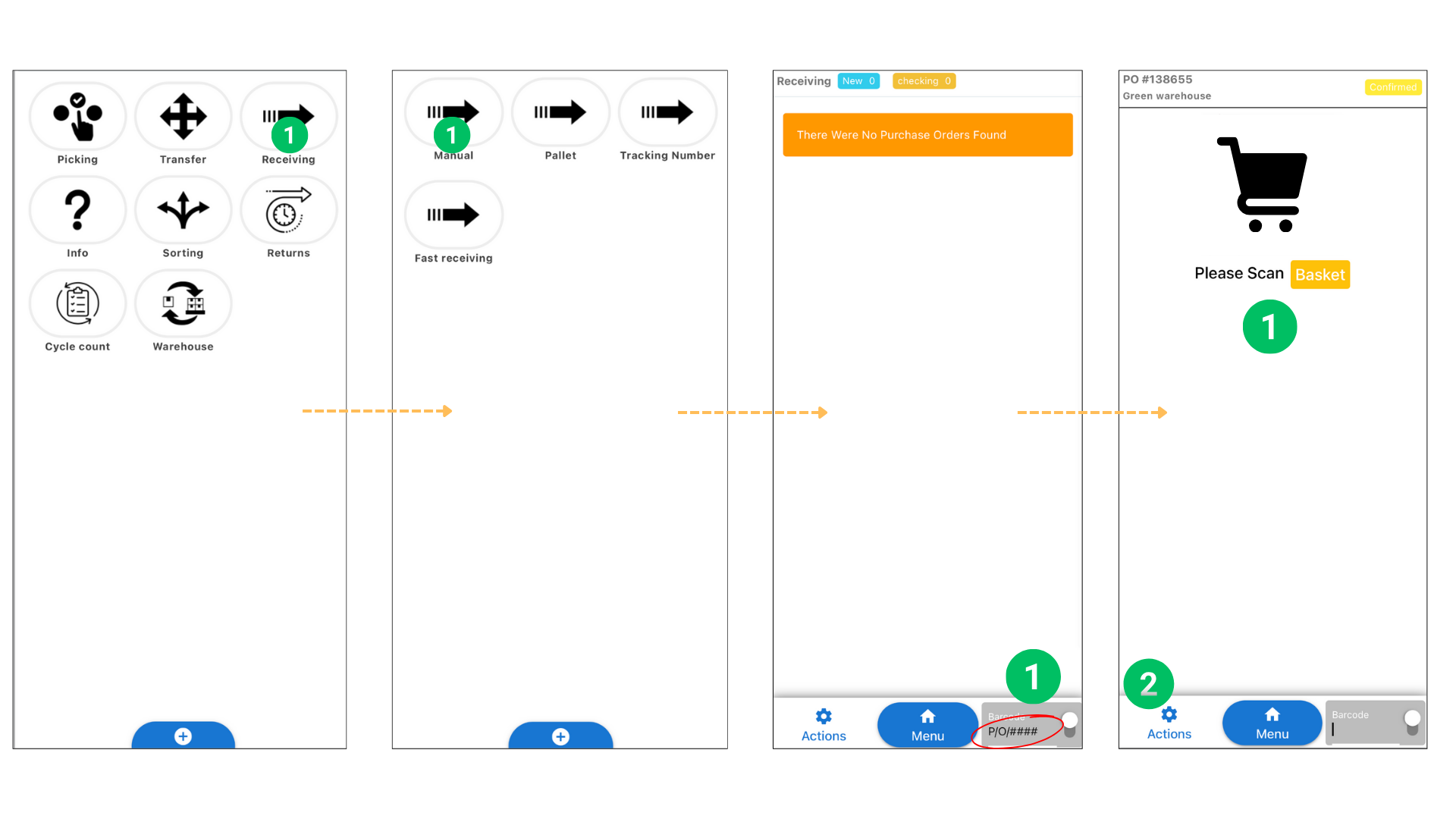
1.Scan the PO barcode #
If your PO printout includes a barcode, simply scan it.
Or enter the PO number manually
Tap the barcode field and type: P/O/{PO ID}*. Example: P/O/138655*
This will immediately open the selected PO.
2. Scan the Basket (Employee Location) #
Once the PO is selected, the screen will show: “Please Scan Basket”
This means the system is asking you to scan an Employee location barcode — also known as the Basket location.
Why Basket?
Basket = a temporary employee “mobile location” used during allocation.
It tells the system who is putting away inventory and where items are being moved from.
Any location with type Employee can serve as a basket.
So:
Scan the barcode label of an Employee-type location
(e.g., a cart, tote, or handheld basket assigned to a worker)
What Happens Next?
Once the Basket is scanned:
• The system enters the allocation mode
• You start scanning product barcodes
• For each product, the system asks you to scan the target storage location
• Items are allocated in real time
6. Repeat for the Next Shelf or Bin #
If you are scanning shelf-by-shelf:
1. Finish receiving and allocation for the current shelf
2. Create a new PO or continue scanning into the same PO
3. Move to the next bin and repeat the scanning process
This ensures accurate real-time inventory updates per location.


