
This guide explains how to set up warehouse locations, sections, and bins, and how to generate location barcodes for labeling shelves.
Octava – Storage Location Types (Complete List)
| Type | Purpose | Best Use Cases / Notes |
|---|---|---|
| Static | Regular fixed storage location | Main bins/shelves used for put-away and daily picking. Most accurate inventory lives here. |
| Dynamic | Temporary or overflow locations | Useful during peak season, fast-moving stock, or when items don’t have a fixed bin. |
| Section | Structural grouping (not a real location) | Used to build hierarchy (Room → Section → Subsection). Not for storing inventory. |
| Subsection | Additional grouping under Section | Helps warehouse navigation; still not for storing units. |
| Sorting | Sorting zone for picked items | Used after picking, when items must be grouped by order, batch, or carrier. |
| Distribution | Staging after picking | Post-picking area before packing or outbound. Ideal for wave/batch picking workflows. |
| Distribution Rejected | Rejected or mis-sorted items | For QC checks, fixing pick mistakes, or re-routing incorrect items. |
| Packing | Packing workstation area | Used during the packing process. Items normally stay a few minutes only. |
| Universal | Flexible location that accepts any product type | Good for mixed-use zones or small warehouses without strict zoning. |
| Pallet | Pallet or bulk storage | For large, heavy, or palletized inventory. |
| Defective | Defective, expired, damaged, or non-sellable stock | For QA holds, returns to supplier, or disposal. |
| Employee / Shopping Basket | Temporary personal picking location | A virtual basket assigned to a picker. It is used in the mobile interface before starting any process to identify the employee’s temporary working location. |
Step 1. Open the Warehouse Settings #
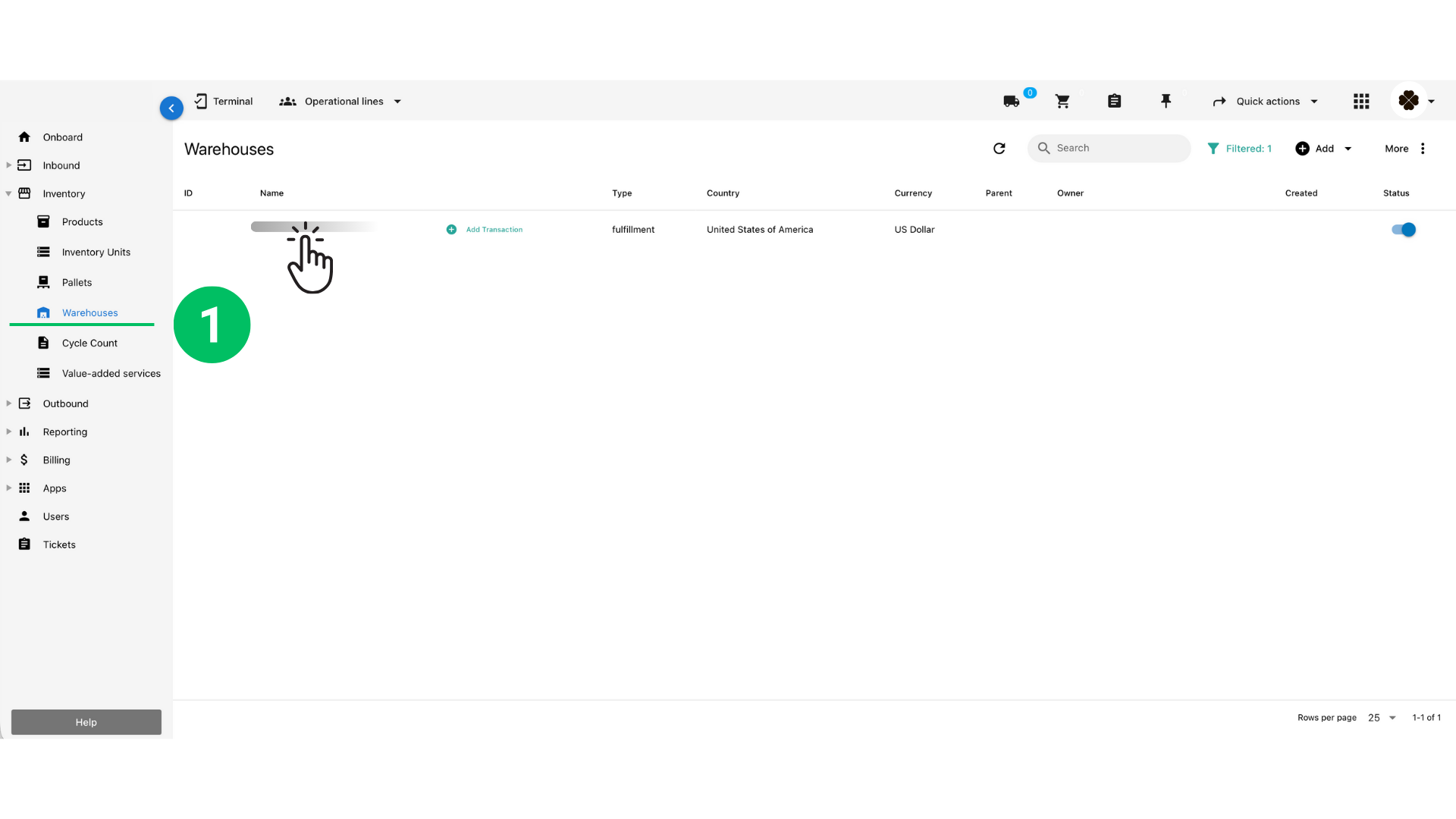
1. Go to Inventory → Warehouses.
2. Click on the warehouse where you want to create locations.
Step 2. Add Location Structure (Room → Section (→ Sub-Section) → Bin) #
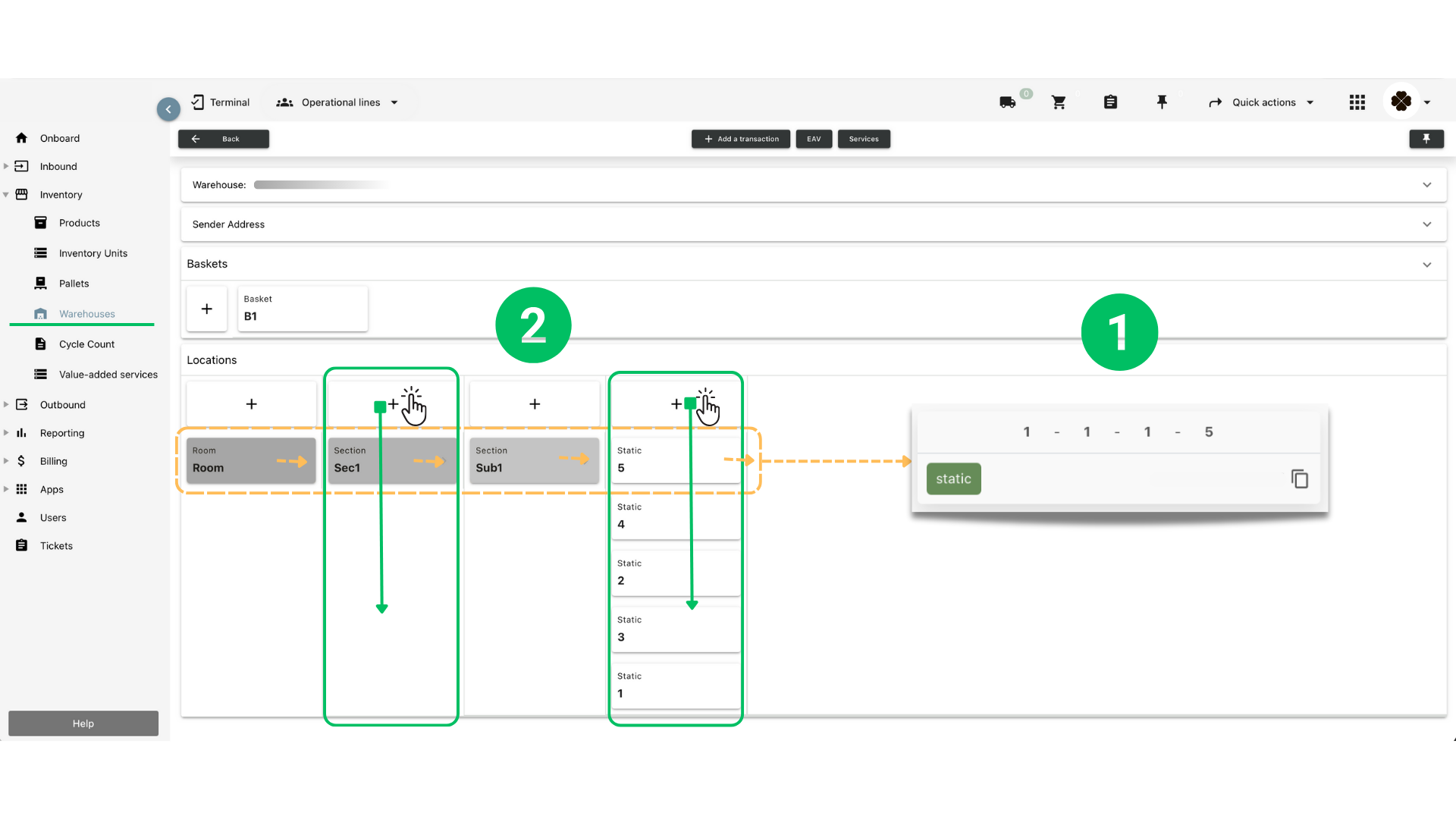
1. Locations in Octava follow a hierarchy:
Room → Section → Sub-Section → Bin (Static, Dynamic, Sorting, Packing, etc.)
2.1 Create a Section
1. Scroll to Locations inside the warehouse.
2. Click the “+” button under the Section column.
3. Enter the section name (e.g., Sec1).
4. Click Save when you finish all locations, no need to save each time.
2.2 Create a Sub-Section (Optional)
1. Click “+” under the Sub-Section column.
2. Name the sub-section (e.g., Sub1).
Step 3. Create Bins (Static / Dynamic) #
3.1 Add a Bin or Range of Bins
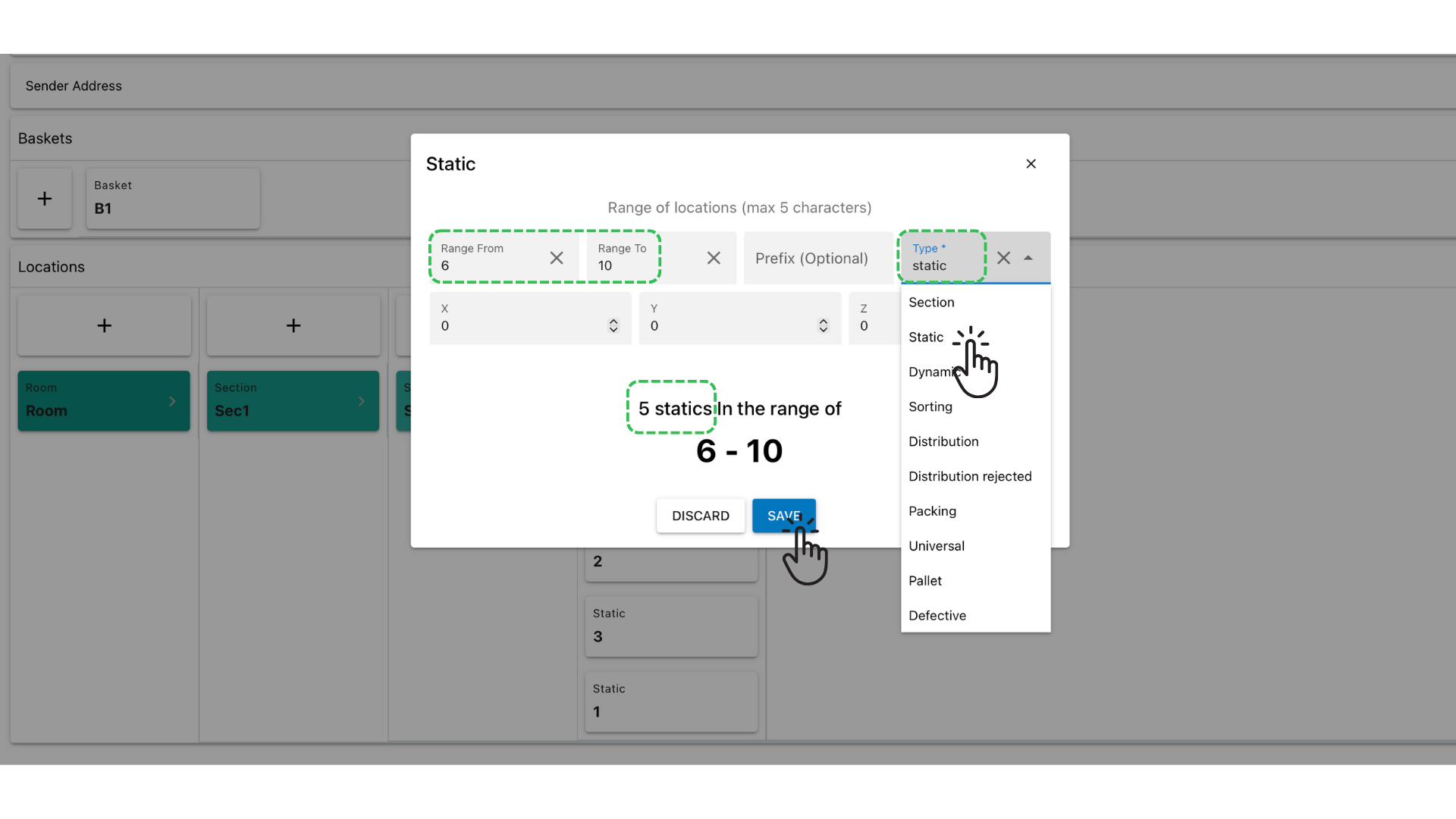
1. Choose the Sub-Section or Section where you want to add bins.
2. Click “+” under the Bin column.
3. Select the Location Type (Static, Dynamic, Pallet, etc.)
3.2. To create multiple bins at once:
• Enter Range From (e.g., 6)
• Enter Range To (e.g., 10)
→ This will create bins 6, 7, 8, 9, 10 automatically (total 5 bins).
5. Click Save.
Step 4. Review the Newly Created Locations #
Go to:
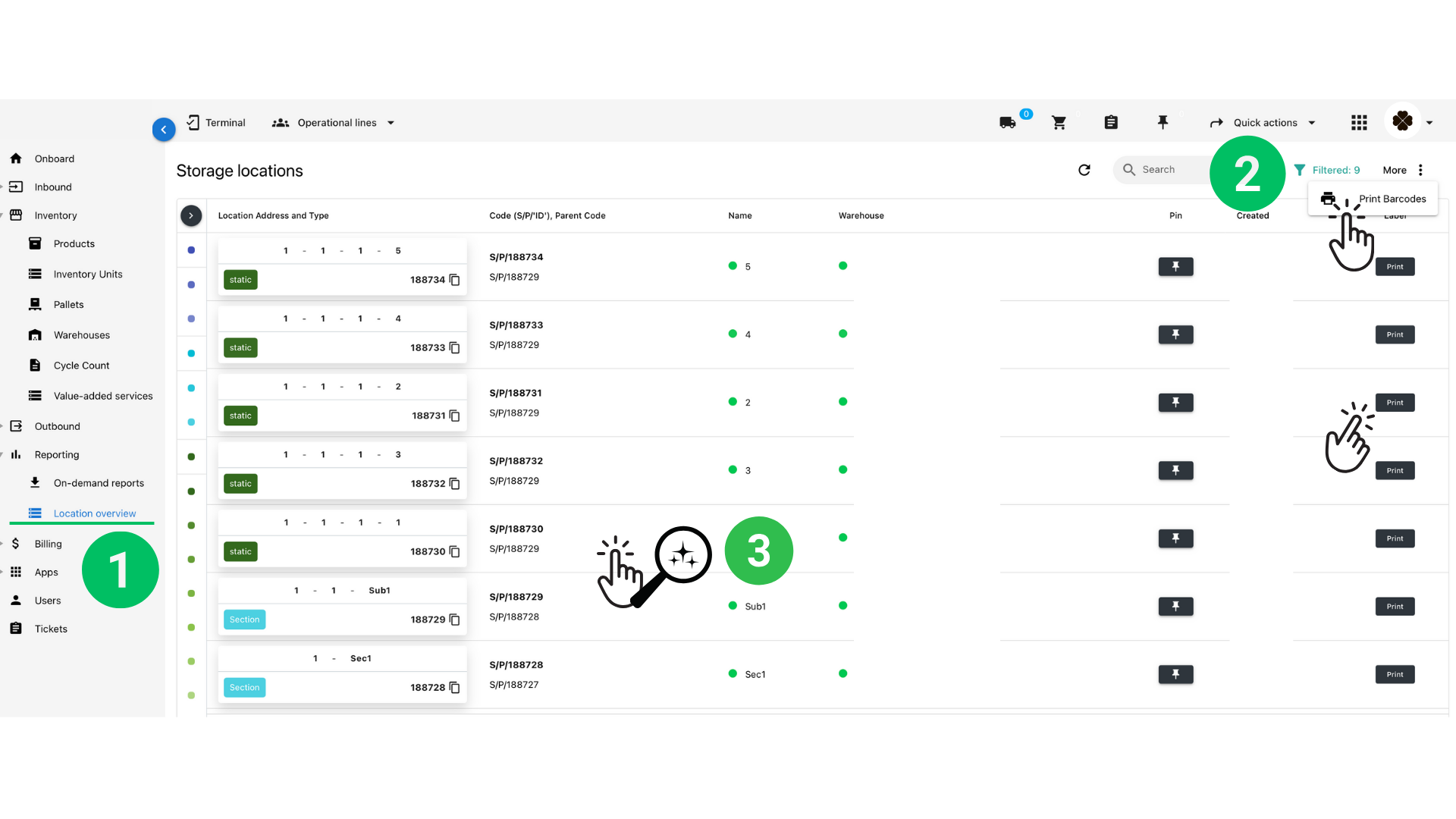
1.Inventory → Location Overview
Here you can:
• Review all your created locations
• See full location codes
• Check type (Static, Section, Sub-Section)
• Print barcodes
2. Print Location Barcodes for Shelf Labeling #
2.1. In Location Overview, filter or select the newly created locations.
2.2. Click More → Print Barcodes.
2.3. Or click Print on the right side of any location row.
You can now print labels and attach them to shelves, bins, or pallets.
3. See more information about the location and which products it contains. #
Step 5. Pinning Locations for Easier Testing in the Octava Terminal #
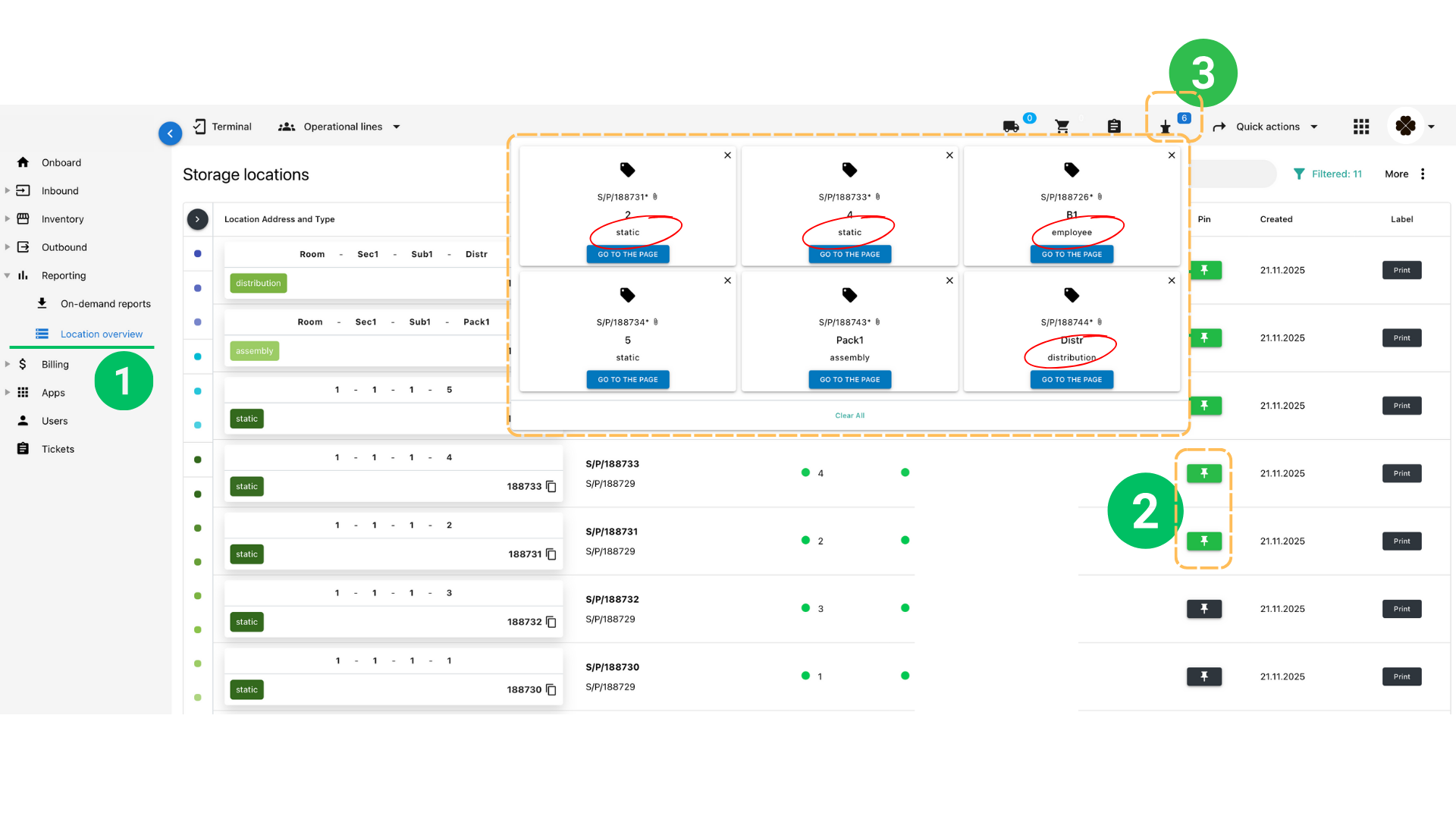
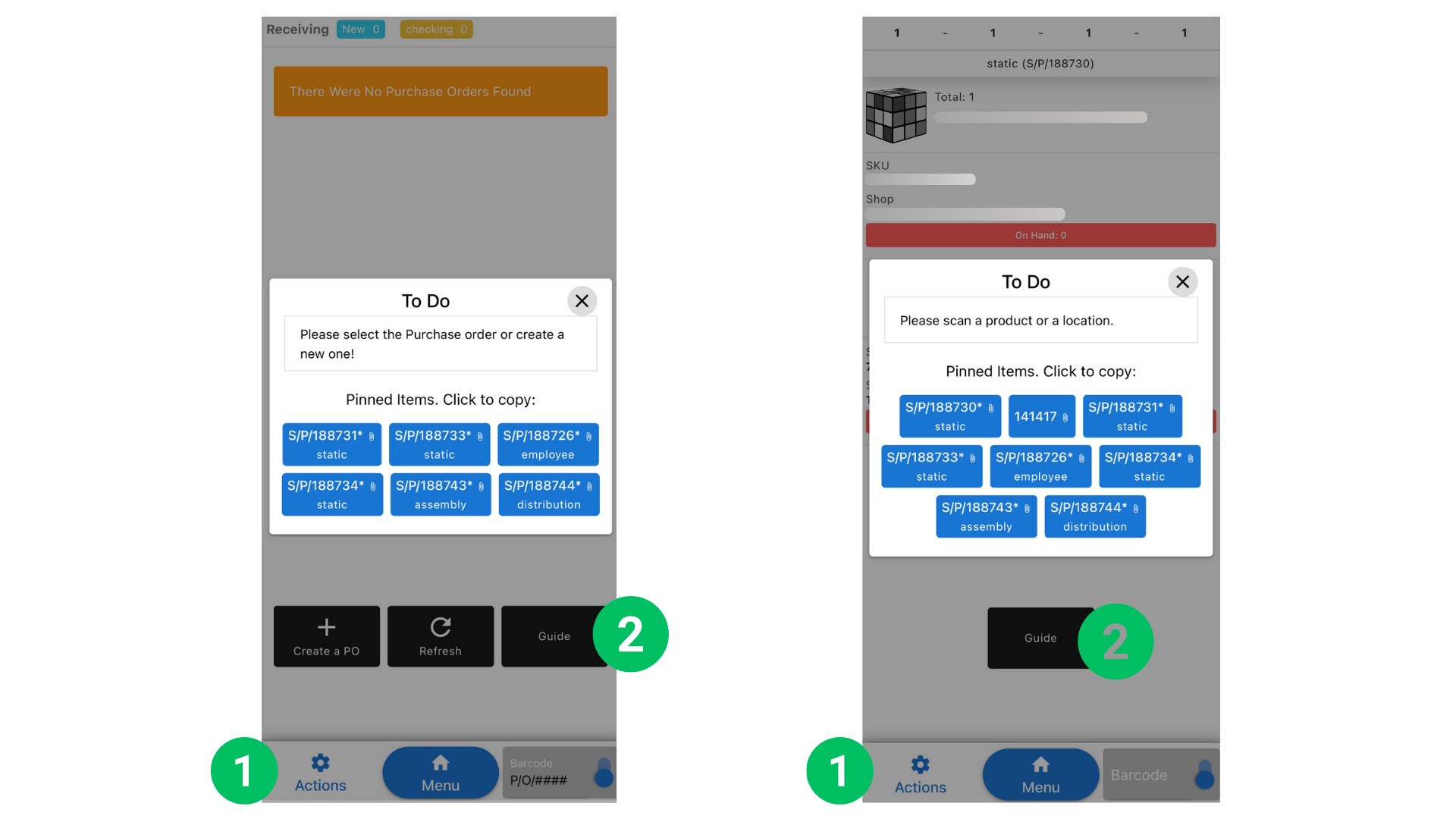
You can pin storage locations from the desktop interface so they appear inside the Terminal → Actions → Guide section.
This allows users to quickly see and copy location codes without needing to scan barcodes — very useful for training or testing workflows.
To pin locations:
- Open Inventory → Location Overview.
- Click the pin icon next to any location you want to appear in the Terminal guide.
- All pinned locations will be visible inside Terminal → Actions → Guide, where users can copy or enter codes manually.
Recommended Locations to Print for Terminal Testing #
Although the guide helps for manual entry, for realistic testing of scanning workflows, we recommend printing barcodes for a few essential location types:
- Employee (Basket) — used as a virtual shopping basket to start picking/receiving.
- Static locations — main storage bins or shelves.
- Distribution locations — used for sorting after picking or after receiving.
- Assembly/Packing location (optional) — to test packing/assembly flows.
Keep these printed barcodes on hand to simulate real scanning during testing.


